| Build a slideshow |
| Slideshow Assistant
helps you turn your photos into a slideshow that can include background
music, transitions, and your own text.
|
|
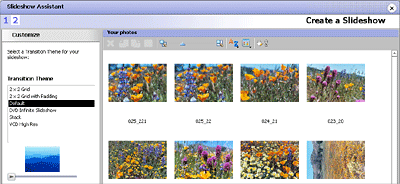
Slideshow Assistant offers a choice
of Transition Themes. |
- What is pan and zoom? Pan and zoom is a transition
effect that gives your slideshows a sense of continuous motion. As each
picture is displayed, the camera angle simultaneously moves across the
image as the image is enlarged.
|
To create a slideshow:
- Click on the Photo tab in the project
list. A list of projects is displayed.
- Click on the Create Slideshow project.
Slideshow Assistant opens and Roxio Home moves to the Windows taskbar.
- Click on the Add Photos button to select the
photos you want to include in the slideshow.
- Click on the Add Audio button to select the audio
you want to include in the slideshow.
- Click on the Next button to continue.
- Follow the instructions in the Slideshow Assistant to
choose the transition theme, set the duration, and add pan and zoom
effects.
|






