| Print photographs |
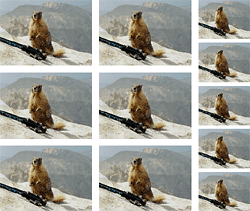
PhotoSuite lets you easily print
more than one picture per page. |
Using PhotoSuite, you can print one photo
on a page or many copies of the same photo on a page.
The option you choose depends on the size
of your photos and what you plan to do with them. For example, if you
have a collection of 4" x 6" vacation photos, you could print
two photos per page.
|
- Use photographic quality printer paper. Photos do not
print as well on laser printer paper.
- Select a high print quality in your printer’s settings.
When you choose a high quality print setting, the print output improves,
but the print job takes longer.
- Use color matching, if your printer supports it. The
colors on screen do not always match the printed colors. The color-matching
feature improves consistency between on screen and printed colors.
- Select the highest photographic quality for your digital
camera. You cannot store as many photos on the camera at a time, but
the higher-quality photos will give you better print results.
- If you are scanning images, scan at the highest image
resolution available. Refer to your scanner’s documentation for
information about setting the best resolution.
|
To print a photograph:
- Click on the Photo tab.
- Click on the Print Photos project name. PhotoSuite opens and Roxio Home moves to the Windows
taskbar.
- Open the photo you would like to print. On the Options
bar, click on the Print icon
 . .
- A Settings window opens where you can choose a printer,
paper size and orientation, the number of pictures per page, and other
options.
- When your are ready to print, click on the Print
button.
|






