Previous topic Return to topic list Next topic
Create a photo project
Photo Projects Assistant
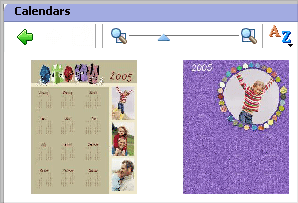
Two of the many calendar templates that are available when you use Photo Projects Assistant.

Photo Projects Assistant helps you make fun projects including calendars, photo albums, gift tags, and posters.

Choose from hundreds of professionally designed templates or design an original project that blends photographs, text, and graphics to showcase your creative talent.


Tips

  • Each element placed on the Canvas is an object. Objects include photos, text, clip art, and shapes. Objects can be individually moved or resized.
  • The following image file formats are supported: .bmp, .rle, .dib, .jpg, .jpe, .jpeg, .gif, .png, .tif, .tiff.

Step-by-step

To create a photo project using Photo Projects Assistant:
  1. Click on the Photo tab in the project list. A list of projects is displayed.
  2. Click on the Photo Projects listing. Photo Projects Assistant opens and Roxio Home moves to the Windows taskbar.
  3. Select the type of project you want to create.
  4. Click on the Next button to continue.
  5. Follow the instructions in Photo Projects Assistant to choose the template or style for your project, add photos and text, and so on.

Previous topic Return to topic list Next topic

© 2000-2006 Sonic Solutions. All Rights Reserved.

www.roxio.com