Previous topic Return to topic list Next topic
Make a Jukebox Disc
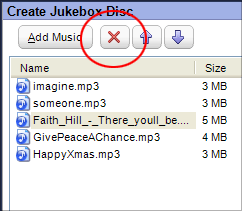
The Remove button
To delete a song from a Jukebox Disc project, select the song and click on the Remove button (circled).

A typical audio CD can hold only 10 to 20 songs. This is because the format used to create audio CDs produces large, uncompressed files. A Jukebox disc, on the other hand, can hold hundreds of songs because compressed audio files copied to a Jukebox disc stay compressed.

Jukebox discs can be created using files saved in a wide range of formats. The discs can be played in any compatible computer, music player, or set-top disc player.


Tips

  • If your music player does not recognize the format of a song on your disc, the song will be skipped.
  • QuickTime 6.4 or greater may be required to record M4A and MP4 files.
  • You can create a Jukebox disc containing copy-protected WMA files, but those files will only play on the computer used to create them.
  • Once a Jukebox disc is recorded, no additional data can be added to the disc unless the disc is a CD.

Step-by-step

To make a Jukebox disc:
  1. Select the Jukebox Disc project on the Audio tab.
  2. Click on the Add Music button and use the Add Music window to select the files you want to add.
  3. Use the Up and Down arrow buttons in the project window to arrange the songs in the desired order.
  4. Insert a blank or rewritable disc into the recorder drive you wish to use for this project.
  5. Select the recorder drive from the Destination Selection drop-down menu in the control panel.
  6. Click on the action button to begin recording.

Previous topic Return to topic list Next topic

© 2000-2006 Sonic Solutions. All Rights Reserved.

www.roxio.com