| Fix and enhance photographs |
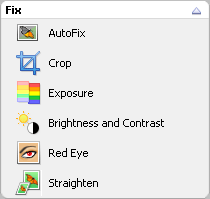
A few of the tasks available for
fixing and enhancing your photographs. |
PhotoSuite
provides easy-to-use tools to help you enhance your photos. You can:
- Automatically improve exposure, saturation, and sharpness with just one click.
- Adjust tint, brightness and contrast.
- Fix red eye, or repair damage such as dust or scratch marks.
- Straighten crooked photos, or focus on the subject by cropping unwanted areas.
|
- Most enhancement methods can be applied automatically
or manually.
- Some tools include a Show Preview checkbox.
Select the checkbox to view changes as you make them. Changes to a picture
can be cancelled by clicking on the Cancel or Reset
buttons.
- Masks are a great way to control the area altered by
special effects or repair tools. Unmasked areas of the photo remain
unchanged.
|
To automatically improve photos using AutoFix:
- Click on the Photo tab.
- Click on the Fix & Enhance project
name. PhotoSuite opens and Roxio Home moves to the Windows taskbar.
- Open the photo you want to edit. If the photo is an object
in the PhotoSuite project file, select it in the canvas.
- In the task area, under Fix, click AutoFix.
The AutoFix window appears.
- Click on the AutoFix button. AutoFix
automatically analyzes exposure, saturation, and sharpness and fixes
them.
|






