Save a Data Disc project
as a disc image file |
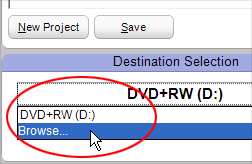
Select Browse from the Destination
Selection drop-down menu to pick a hard drive location for your disc image
file. |
The files
in a Data Disc project can be converted into a single
file known as a disc image file. That disc image file can then be used
to reproduce the original file set on a disc.
|
- Disc images formatted using one file type cannot be burned
to disc of a different type. For example, disc images formatted using a DVD
file type cannot be burned to a CD.
- Naming conventions can serve as a useful reminder when
creating disc image files. The default naming convention includes the
date of creation and the time of creation.
- There is no limit on the amount of data you can add to
a Data Disc project. This means it is possible to create a disc image
file that contains more data than you will be able to fit on a disc.
To avoid this potential problem, temporarily select a disc drive from
the Destination Selection list. Then insert a blank disc into the drive.
You will now be able to use the free space indicator in the lower left-hand
corner of the application window to monitor the size of your project.
|
To create a data disc image file:
- Open a new or saved Data Disc project.
- Select Browse from the Destination
Selection drop-down menu. A Save As window appears.
- Select a destination for the disc image file, and give
it a meaningful name. Select a file type from the Save as type
drop-down list.
- Click on the Save button. The Save As
window closes.
- Click on the action button to begin creating your disc
image file.
|






