| Make a CD from files on your computer |
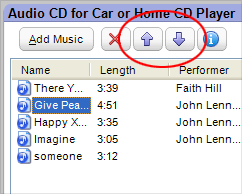
To change the song order, click
on a song title, then click on the Up or Down buttons (circled). |
The Audio
CD project can use music files on your computer to create a disc that
can be played on any car or home stereo system.There's no better way to
burn custom audio CDs.
|
- Several useful options are available to speed up your
projects and improve the quality of your finished discs. To view your
Audio options, click on the Options button.
- Watch the media information display to make sure the
songs in your project will fit on your disc.To remove a song from the
current project, click on its title and click on the Remove
button.
- QuickTime 6.4 or greater may be required to support
M4A and MP4 files.
- Audio CDs can also be created by dragging music files
onto the miniature program interface (Mini Mode). Consult the product
Help file for more information.
|
To create an audio CD from songs on your computer:
- Click on the Audio project tab and select
the Audio CD project.
- Drag music files from a directory window to the Audio
CD project window. When you drag a playlist file to the project window,
each song in the playlist is added to the project. (Windows Media Player
9 or greater is required for playlist support.)
- Arrange the song order in the project window by selecting
a song and then clicking on the Up or Down
arrows.
- Insert a blank or rewritable CD into the recorder drive
you wish to use for this project.
- Select the recorder drive from the Destination Selection
drop-down menu in the control panel.
- Click on the action button to begin recording.
|






