| Make a CD from songs on disc |
This "over" message means
that you have added more songs than will fit on your disc. |
The big party
is tomorrow night. You are in charge of the music. With the Audio
CD project, you can pick the very best songs from your CD collection
and burn them onto a single audio CD that will play in your home stereo.
Each song you add to the project window
is temporarily stored on your hard drive. Once the song list is arranged
just right, click on the action button to create your new audio CD.
|
- An audio CD can hold between 74 and 80 minutes
of music.
- You cannot use a DVD or BD disc to create an audio CD.
- An Audio CD project can include songs
from audio CDs and songs stored as files on your computer.
- Some audio discs are created with encryption techniques
that will prevent you from making copies.
- As you select songs from an audio CD, they are temporarily
stored on your computer’s hard drive. You will need up to 700
MB of free space on your hard drive to successfully select all the songs
on an audio CD.
- Audio CDs can also be created by dragging music files
onto the miniature program interface (Mini Mode). Consult the on-line
Help file for more information.
|
To make a CD from songs on one or more discs:
- Click on the Audio project tab, and
select the Audio CD project.
- Insert an audio CD into your recorder drive.
- Click on the Add Music button.
- Use the Music Files window to navigate to songs you would
like to add.
- Select the songs, and click on the Add
button.
- To add songs from another CD, eject the first CD and insert the next
CD. Repeat the steps above to add songs from this next disc.
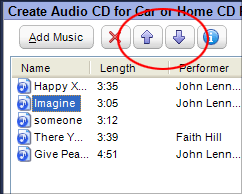
- Arrange the song order in the project window by selecting a song and
then clicking on the Up or Down arrows.
- Insert a blank or rewritable CD into the recorder drive
you wish to use for this project.
- Select the recorder drive from the Destination Selection
drop-down menu in the control panel.
- Click on the action button to begin recording.
|






