Previous topic Return to topic list Next topic
Audio options
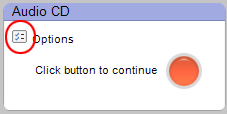
The Options button
The Options button (circled).

The Options button is located near the action button on the right side of the control panel. Click on it to access your Audio options.

Note: Some of the options described here may not be available with your version of the project launcher. Not all options are available with all drives or operating systems.


Tips

The following Audio options are particularly noteworthy:
  • Normalize tracks to a consistent level: This option on the Audio panel sets the volume of songs in an audio project to a consistent level. The level is set by selecting the checkbox and moving the slider left or right. A setting of 90 percent, for example, sets the volume of all tracks in the current project to 90 percent of the loudest song. Normalization is turned off by default.
  • Conversion settings: These options on the Conversion panel control the file format (MP3, WMA, etc.) and quality of the files created by the Convert CDs project. Check and adjust these settings before using the Convert CDs project for the first time.

Previous topic Return to topic list Next topic

© 2000-2006 Sonic Solutions. All Rights Reserved.

www.roxio.com