



|
|
|
|
|
| Archive valuable files | |||||
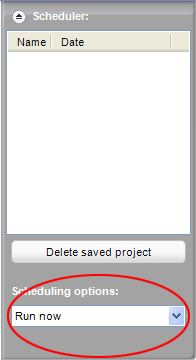
Schedule your Easy Archive project by
selecting one of the options that is displayed when you click on the Scheduling
options box.
|
The Easy Archive project lets you easily copy important files to a hard drive or disc. Projects can be scheduled to run whenever it's convenient, and large archives are automatically spread across as many discs as you need. Begin by selecting the drive, drive partition, or folder to archive. Then select the types of files you want to protect: Email, Financial, Music, Photos, Productivity, Video, or My Recorded TV. You can even create a custom category by using the controls you will find when you click on the Options button and open the Backup panel. The Help file explains the controls in detail. |
||||
| Tips | |||||
|
|||||
| Step-by-step | |||||
To archive files:
|
|||||
 |
 |
 |
 |
 |
© 2000-2006 Sonic Solutions. All Rights Reserved. |