Autodesk DirectConnect for IGES
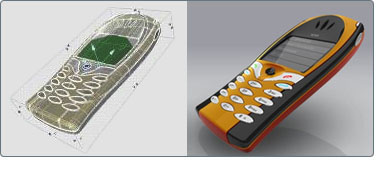
Initial Graphics Exchange Specification (IGES) is a file format for transferring graphics data between CAD/CAM systems. Autodesk DirectConnect lets you import the neutral IGES format files (*.iges or *.igs) from any number of CAD or modeling packages.
For information on the Autodesk products that support this format, go to the topic Summary of supported formats.
 Maya supports this translator on the Mac OS X operating system.
Software Prerequisites
- Install one of Autodesk StudioTools, Autodesk ImageStudio, Autodesk Maya or Autodesk Showcase. (The Autodesk DirectConnect software is installed at the same time.)
- No license is required to import this file format.
- For Maya, you must load a plug-in to use Autodesk DirectConnect translators. See Additional software setup, Autodesk Maya.
Additional software setup, Autodesk StudioTools
For Autodesk StudioTools Version 13.0.2, you must set the ALIAS_IGES_DC system environment variable to use the latest IGES translator:
- From your Windows toolbar, select Start > Settings > Control Panel.
- Double click on System. The Systems Properties window opens.
- Click on the Advanced tab.
- Click on the Environment Variables button.
- Click New and enter the following information:
- For Variable name, ALIAS_IGES_DC
- For Variable value, 1
To import IGES files:
- In your Autodesk software, choose the appropriate menu item. For example,
- Select a native IGES (*.iges or *.igs) file from the file browser.
- Click OK.
The translator will automatically launch and the file will import into the scene.
Troubleshooting (Autodesk StudioTools)
If the files you import contain unsatisfactory data, you may need to change the following import options in Autodesk StudioTools:
Default Trim Curves
Specifies the trim curves that the processor will use. You can select parameter space curves, model space curves, or use the flag that is present in the.IGES file. If for any reason the trimming fails, the translator will try and trim with the alternative curves.
Shrink Surface
When ON, StudioTools detects trimmed surfaces whose trim boundaries are the same as, or iso-parametric to, the natural boundaries of the untrimmed surface. It then converts these surfaces into StudioTools surfaces by shrinking the untrimmed surface to the trim boundaries.
When OFF, StudioTools converts all trimmed surfaces of this type to StudioTools trimmed surfaces.
Types of data imported
The Autodesk DirectConnect for IGES translator imports ASCII format IGES files with or without linefeed characters at the end of each record. Binary IGES files are not supported.
NURBS are imported for this file format.
The following information is maintained on import:
For information on this data in your Autodesk software, see Where to find imported data.
Identifying IGES supported entities in log files
The following table shows IGES entities supported on import by Autodesk DirectConnect for IGES.
Any entities with an entity use flag value 02 (Definition) are ignored by the input translator except for those with IGES Subfigure Definition entity (Type 308).
IGES levels
All supported geometric IGES entities that are associated with IGES level <n> are added to an Autodesk StudioTools layer called LEVEL<n>. For example, if a 126 B-spline entity's directory entry indicates that it is on level 42, then it is added as Layer LEVEL42.