Autodesk DirectConnect for DWG/DXF
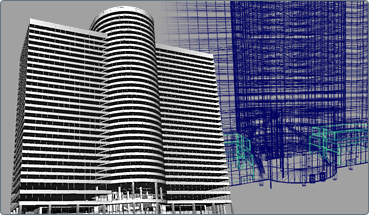
Autodesk DirectConnect lets you import Autodesk AutoCAD® drawing files (DWG) and Drawing interchange format (DXF) files into supporting Autodesk products.
 For information on the Autodesk products that support these formats, go to the topic Summary of supported formats.
Software Prerequisites
- Install the Autodesk product where you will be importing files using this format. (The Autodesk DirectConnect software is installed at the same time.)
- No license is required to import this file format.
- For Maya, you must load a plug-in to use Autodesk DirectConnect translators. See Additional software setup, Autodesk Maya.
To import DWG/DXF files
(You cannot use Autodesk DirectConnect to import a DWG file when that file is being edited in AutoCAD.)
The translator automatically launches and the file is imported.
Types of data imported
The following types of DWG and DXF data are supported:
 There are several known problems when importing 3D solid shapes; namely, elliptical cylinders and elliptical cones will not be imported (that is, shapes using an ellipse at their base).
For information on locating this data in your Autodesk software, see Where to find imported data.