

Time Warp effect
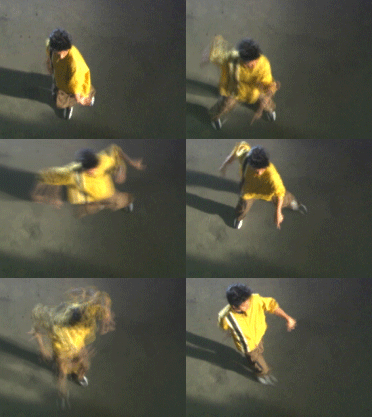
The Time Warp effect gives you precise control over a wide range of parameters when changing the playback speed of a layer, including interpolation methods, motion blur, and source cropping to eliminate unwanted artifacts. Since Time Warp affects video only, it is usually best to unlink video from audio before applying it to a clip. Reducing the speed of a clip with Time Warp does not extend the clip’s duration, but instead makes it end on an earlier frame. You can nevertheless retrim the clip, retaining the Time Warp effect, up to the clip’s full duration. However, during trimming, the monitors will show the In and Out points of the host clip unaffected by Time Warp. For example, the end point you might see in the Program Monitor while trimming will not be the end point of the clip when you preview it with the effect applied. Also, warning bars will not appear on the clip in the Timeline when you trim past the last frame of available media. Precise trimming of a clip with the Time Warp effect can be tricky.
Method options
These options determine how interpolated frames are generated:
- Whole Frames
- Duplicates the last frame shown.
- Frame Mix
- Creates a new frame by blending existing frames.
- Pixel Motion
- Creates a new frame by analyzing the pixel movement in nearby frames and creating motion vectors.
Adjust Time By controls
Choose Speed to specify a time adjustment as a percentage. Choose Source Frame to specify a time adjustment by identifying which source frame is to play at which time. If you choose Source Frame for Adjust Time By, then you must animate the Source Frame property to do anything other than freeze on one frame.
Tuning controls for Pixel Motion interpolation
- Vector Details
- Determines how many motion vectors are used during interpolation. The more vectors used, the longer the rendering time. A value of 100 produces one vector per pixel. If a layer has fast-moving motion, it may look better with a lower Vector Detail setting.
- Smoothing
-
These controls affect the sharpness of the image:
- Build From One Image
- Generates the final output from the closest single frame, as opposed to the closest two frames. This setting results in a sharper image, but jerkier motion.
- Correct Luminance Changes
- Equalizes the luminance between frames before calculating motion.
- Filtering
- The quality of the filtering used to build the interpolated image. Extreme greatly increases rendering time. The Filtering option affects only the sharpness of the final image; use Normal until you’re ready for final rendering.
- Error Threshold
-
Determines the accuracy of pixel matching from one frame
to the next. A higher value results in fewer motion vectors and
more blending.
Note: If you see edge tearing in an image, try increasing the Error Threshold for more blending. If the image has heavy grain, try decreasing the Error Threshold so the low-level motion of the grain will be ignored.
- Block Size
- Adjusts the size of the blocks used to calculate the vectors.
- Weighting
- Controls the weighting of the red, green, and blue channels in calculations used to analyze the image. For example, setting Red Weight and Green Weight to zero means that only the blue channel is analyzed for motion.
Motion Blur controls
- Shutter Angle
- Determines the intensity of motion blur. The shutter angle is measured in degrees, simulating the exposure caused by a rotating shutter. Simulated exposure time is determined by dividing the shutter angle by the frame rate times 360°. For example, a shutter angle of 90° causes an exposure of 1/96 of a second per frame: 90°/(360°x24fps).
- Shutter Samples
- Controls the quality of the motion blur. A higher value results in a smoother motion blur.
Matte, warp, and crop controls
- Matte Layer
- The layer to use as a matte for defining the foreground and background areas of an image. White areas in the matte represent the foreground, black areas represent the background, and gray attenuates between foreground and background.
- Matte Channel
- The channel to use as a matte.
- Warp Layer
- Allows you to warp the layer to which the effect is applied by applying the motion vectors from the layer that you choose.
- Show
- Controls the portion of the layer to be time-remapped.
- Source Crops
-
If your image contains unwanted pixels or artifacts at the
edges, use Source Crops controls to specify image boundaries. Pixels
from the boundaries are repeated to fill the area beyond the boundaries
to the layer’s edges.Note: The After Effects Time Warp effect is very similar to Time Warp in Adobe Premiere Pro.