

Grid effect
Use the Grid effect to create a customizable grid. Render this grid in a color matte or as a mask in the alpha channel of the source clip. This effect is good for generating design elements and mattes within which other effects can be applied.
View full size graphic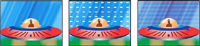
Original image (left) and with variations of effect applied
(center and right)
- Anchor
- The point of origin of the grid pattern. Moving this point offsets the pattern.
- Size From
-
How the dimensions of the rectangles are determined:
- Corner Point
- Each rectangle’s dimensions are those of the rectangle with opposite corners defined by the Anchor and Corner points.
- Width Slider
- A rectangle’s height and width are equal to the Width value, meaning the rectangles are squares.
- Width & Height Sliders
- A rectangle’s height is equal to the Height value. A rectangle’s width is equal to the Width value.
- Border
-
The thickness of the grid lines. A value of 0 causes the
grid to disappear.
Note: The anti-aliasing of the grid borders may cause the visible thickness to vary.
- Feather
- The softness of the grid.
- Invert Grid
- Inverts the transparent and opaque areas of the grid.
- Color
- The color of the grid.
- Opacity
- The opacity of the grid.
- Blending Mode
- The blending mode to use to composite the grid on top of the original clip. The default None mode renders the grid only.