

Create split edits
Ordinarily, you set one In point and one Out point for a source clip. Even if it’s a linked clip (a clip containing video and audio tracks), In and Out points apply to both tracks of the clip. Set in a sequence, the audio and video of the standard clip appear at the same time. Sometimes you want to set the video and audio In or Out points independently, however, in order to create split edits (also known as L‑cuts and J‑cuts). When placed in a sequence, a clip trimmed for a split edit will have its audio appear before its video, or its video before its audio.
Although it’s common to create split edits after clips are assembled into a rough cut, it’s possible to trim clips for split edits in the Source Monitor before adding them to the sequence.
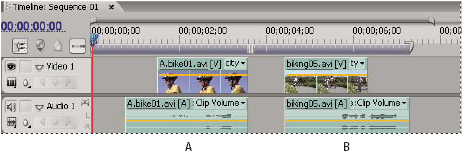
- A.
- Clip trimmed for J-cut
- B.
- Clip trimmed for L-cut
 Create a split edit
 from
the Tools panel.
from
the Tools panel.Set source In and Out points for a split edit
- Open a clip in the Source Monitor, and set the current time to the frame you want to set as a video or audio In or Out point.
- In the Source Monitor, choose Marker > Set Clip Marker, and select Video In, Video Out, Audio In, or Audio Out.
- Set the remaining video and audio In and Out points. (When you add the clip to a sequence, the video portion starts and ends at different times than the audio.)