

Set up a DV or HDV system
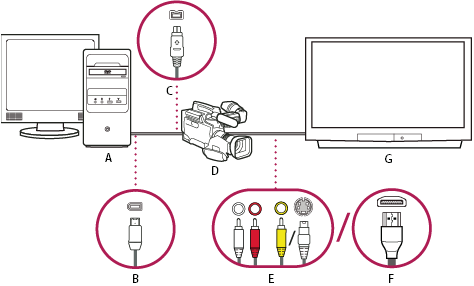
DV/HDV setup
- A.
- Computer and computer monitor
- B.
- 6-pin FireWire port and connector
- C.
- 4-pin FireWire port and connector
- D.
- DV/HDV camcorder
- E.
- RCA jacks and plugs for L (white) audio, R (red) audio, composite video (yellow); jack and plug for S-video (y/c)
- F.
- HDMI port and connector
- G.
- Television monitor
With this setup you can capture audio and video from a DV or HDV source, monitor the signal on a TV monitor while editing, and export any sequence back to videotape.
- Connect the DV or HDV camcorder or VTR to the computer using a FireWire cable.
- Connect the camcorder or VTR to the television monitor with an S-video or RCA video cable and RCA audio cables, or an HDMI cable.
- Put the camcorder or VTR into VTR or Play mode.
- Start Adobe Premiere Pro, and, on the Welcome screen, click New Project.
- In the Load Preset panel of the New Project dialog box, select the DV or HDV preset that matches the format of your source footage.
- Browse to a location, and type a name for the project file. Then click OK.