

Work with styles
Once you’ve applied a combination of color properties and font characteristics to a text or shape element in your title, you can save this combination, or style, for later use. You can save any number of styles. Thumbnails of all saved styles appear in the Title Styles panel, so you can quickly apply your custom styles across projects. Adobe Premiere Pro also includes a set of default styles.
By default, Adobe Premiere Pro stores all saved styles as style library files that use the .prsl file extension. When you save a style library, you are saving the entire set of styles that are displayed in the current Adobe Title Designer window. The preset style library is stored in Program Files/Adobe/Adobe Premiere Pro CS3/Presets/Styles; custom styles are stored in My Documents/Adobe/Premiere Pro/3.0/Styles (Windows), or Documents/Adobe/Premiere Pro/3.0/Styles (Mac OS).
Because Adobe Premiere Pro stores each style or set of styles as a separate file, you can share styles with other users. If you share styles, make sure that the fonts, textures, and background files used are available on all systems.
The Current Style thumbnail always shows the properties that you have applied to the currently selected element.
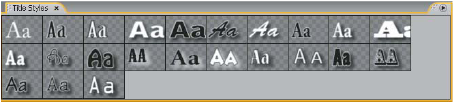
 Modify the style swatch display
The Title Styles panel displays the default style library as well as style swatches you create or load. The display defaults to show large swatches of sample text with the loaded style applied; however, you can choose to view your styles in small swatches or by the style name only.
 In the Title Styles panel menu, choose one of
the following:
In the Title Styles panel menu, choose one of
the following: - Text Only
- Displays only the style name.
- Small Thumbnails
- Displays only small swatches of sample text objects with the styles applied to them.
- Large Thumbnails
- Displays only large swatches of sample text objects with the styles applied to them.