

Snap clips
To make it easier to align clips with one another or with particular points in time, you can activate the snap feature. When you move a clip with snap on, it automatically aligns with, or snaps to, the edge of another clip, a marker, the start and end of the time ruler, or the current‑time indicator. Snapping also helps to ensure you don’t inadvertently perform an insert or overlay edit when dragging. As you drag clips, a vertical line with arrows appears and indicates when clips are aligned.
 Enable and disable the snap feature
 At the upper left of the Timeline
panel under the Sequence tab, click the Snap button
At the upper left of the Timeline
panel under the Sequence tab, click the Snap button  to
select it. Click it again to deselect it.
to
select it. Click it again to deselect it.Snap a clip
- Make sure that the Snap button is
selected in the Timeline panel.
- Drag the edge of a clip close to the edge of another
clip or a marker or the current‑time indicator. A vertical line
appears when alignment occurs.
 You can toggle the snap feature using a
keyboard shortcut (S) even during an editing operation, such as
moving or trimming a clip.
You can toggle the snap feature using a
keyboard shortcut (S) even during an editing operation, such as
moving or trimming a clip.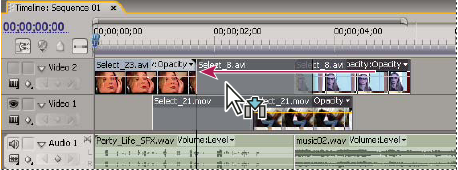 Aligning clips with the snap feature enabled