

Exporting basics
You can export video from a sequence or work area in the form best suited for further editing or for a viewing audience. Adobe Premiere Pro supports export in formats for various uses and target devices
Export files for further editing
In the course of editing, you might export editable movie or audio files in order to preview your work with effects and transitions fully rendered, or to continue editing the files in applications other than Adobe Premiere Pro. Similarly, you may want to export a still-image sequence to be edited in a paint or photographic program. Also, you may want to export a still image from a single frame of video for use in a title or graphic.
Export PDFs for collaboration
Editors commonly need to show preliminary edits to clients and other collaborators, soliciting feedback for improvements. In Adobe Premiere Pro, you can use Clip Notes to generate PDF files containing clips of those edits. You can send these to collaborators who can then return their comments to you in sequence markers you can read at specific frames in the timeline.
Export to Encore for disc or Blu-ray disc creation
You can export video from any sequence into Adobe Encore for output to disc or Blu-ray disc (Windows only). You can send content from Adobe Premiere Pro to Adobe Encore for creating an autoplay disc without menus, or quickly create menu-based discs using the professional templates in Adobe Encore. Alternately, you can use the deep authoring tools of Adobe Encore, Adobe Photoshop and other applications, to author professional-quality discs. You can also export in formats appropriate for video CD (Windows only) or CD-ROM distribution.
Export project files for other systems
You can export project files, not just clips, using popular file formats such as EDL and AAF. The former can be imported into a variety of third-party editing systems for finishing. When done, you can trim Adobe Premiere Pro projects down to their essentials and ready them, with or without their source media, for archiving.
Export formats for various devices and web sites
Finally, using the Adobe Media Encoder, you can export video in formats suitable for devices ranging from professional tape decks to disc players to videosharing web sites to mobile phones to portable media players to standard- and high-definition TV sets.
Ways to export
Adobe Premiere Pro provides two ways to export a file. You can use one of the standard Export commands or you can use the Adobe Media Encoder.
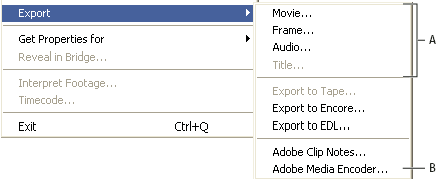
- A
- Standard export commands suitable for movies, stills, or audio for editing elsewhere or for archiving
- B
- Adobe Media Encoder creates files for the web, disks, and mobile devices.
- Standard Export Commands
- The standard export commands (Export > Movie, Frame, Audio, or Title) are used to export full-resolution files that can be archived or brought into projects for further editing. Unlike the options in Adobe Media Encoder, these commands are not used, typically, to encode or compress the files for various kinds of distribution. Initially, the settings for standard export match the Project settings, except in HDV projects which use DV export settings by default.
- Adobe Media Encoder
- Unlike the standard export commands, which generate files in editing formats, the Adobe Media Encoder exports files in distribution formats. These are more-compressed formats such as MPEG‑1 used in CD-ROM authoring, MPEG‑2 used in disc authoring, H.264 MPEG-4 used for video iPods, 3GPP cell phones, PSP devices, and high-definition TVs, or web‑friendly formats like Adobe Flash Video, QuickTime, RealMedia (Windows only), or Windows Media (Windows only). The Adobe Media Encoder accommodates the numerous settings these formats offer, and also includes preset settings designed to export files compatible with particular delivery media