

Set sample‑based audio In and Out points
In and Out points are set at timebase divisions—that is, between video frames. Although frame‑based edits are usually adequate for audio as well, some audio edits require greater precision. For example, you may want to place an In point between two words in a sentence, but the tiny division between words doesn’t conveniently fall between frames. Fortunately, digital audio isn’t divided into frames, but into audio samples, which occur far more frequently. By switching the Source Monitor’s or sequence’s time ruler to audio samples, you can set more precise audio In and Out points.
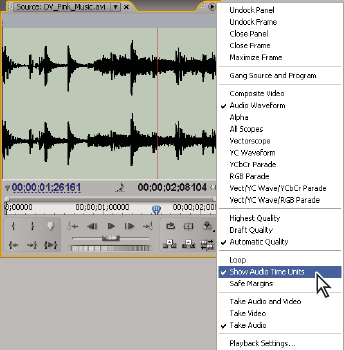
 Switch a time ruler to audio units in the Source or Program Monitor
 In the Source or Program Monitor
panel menu, choose Show Audio Time Units.
In the Source or Program Monitor
panel menu, choose Show Audio Time Units.Navigate audio in sample view
- Switch the time ruler in the Source Monitor or Timeline panel to audio units.
- To navigate, do one of the following:
-
Drag the current‑time indicator
 in
the time ruler to navigate smoothly through the clip.
in
the time ruler to navigate smoothly through the clip. -
Click the Step Forward or Step Back buttons to move the current-time indicator
one
audio sample at a time.
-
- To zoom in or out, drag either end of the viewing area bar in the time ruler of the Source Monitor or Timeline panel.
Trim audio in sample view in the Timeline panel
- In the Timeline panel menu, choose Show Audio Time Units. The time rulers in the Timeline panel and Program Monitor switch to a sample‑based scale.
- If necessary, expand the audio track containing the clip
you want to edit, click the Set Display Style button
 , and
choose Show Waveform.
, and
choose Show Waveform. - View the audio In point or Out point of the clip you want to edit in detail by dragging the zoom slider to the right.
- Trim the clip by doing one of the following:
-
To adjust the In point, position the pointer over the left edge of the clip’s audio so that the trim head tool
 appears,
and drag left or right.
appears,
and drag left or right. -
To adjust the Out point, position the pointer over the right edge of the clip’s audio so that the trim tail icon
 appears,
and drag left or right.
appears,
and drag left or right.
-
- Use the waveform display or play the audio to make sure that you adjusted the In and Out points properly.