

Audio Mixer overview
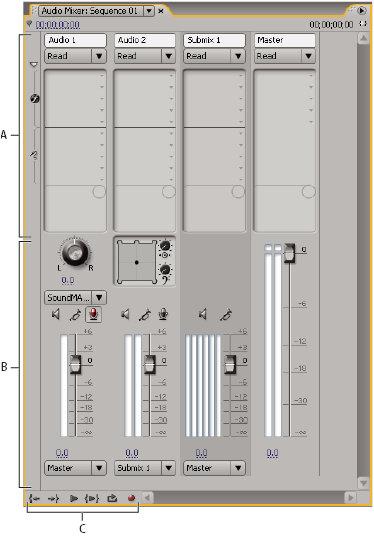
- A.
- Effect and Send area
- B.
- Controls area
- C.
- Playback controls
In the Audio Mixer, you can adjust settings while listening to audio tracks and viewing video tracks. Each Audio Mixer track corresponds to a track in the timeline of the active sequence and displays the timeline’s audio tracks in an audio console layout. Each track is labeled near the top of the Audio Mixer, and you can rename a track by double‑clicking its name. You can also use the Audio Mixer to record audio directly into a sequence’s tracks.
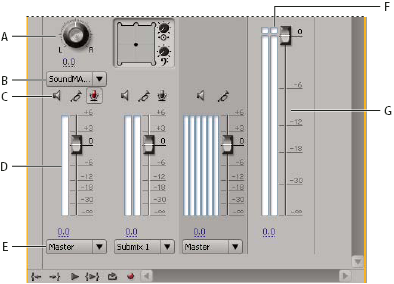
- A.
- Pan/balance control
- B.
- Track Input Channel
- C.
- Mute Track/Solo Track/Enable Track For Recording buttons
- D.
- VU meters and faders
- E.
- Track Output Assignment
- F.
- Clipping indicator
- G.
- Master VU meter and fader
By default, the Audio Mixer displays all audio tracks and the master fader, and the VU meters monitor output signal levels. The Audio Mixer represents the tracks in the active sequence only, not all project‑wide tracks. If you want to create a master project mix from multiple sequences, set up a master sequence and nest other sequences within it.
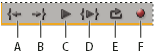
- A.
- Go To In Point
- B.
- Go To Out Point
- C.
- Play/Stop Toggle
- D.
- Play In To Out
- E.
- Loop
- F.
- Record
You can open a separate Audio Master Meters panel and dock it anywhere in your workspace for constant audio monitoring even when the full Audio Mixer isn’t visible or when the Master Fader section is scrolled out of view. The Audio Master Meters panel mirrors the audio display of the Audio Mixer’s Master Meters. It doesn’t display audio output from the Capture panel, Source Monitor, or Reference Monitor.
If you apply a VST plug‑in effect to a track in the Audio Mixer, you can double‑click the effect in the Effects And Sends panel to open a separate VST editing window with the option controls.
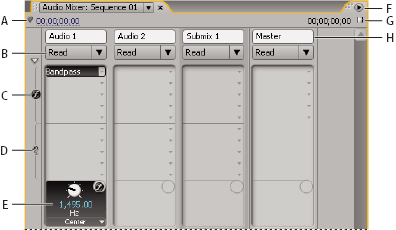
- A.
- Timecode
- B.
- Automation Mode
- C.
- Effects
- D.
- Sends
- E.
- Effect or Send option
- F.
- Window menu
- G.
- In/out program duration
- H.
- Track name
 Modify the Audio Mixer
 Choose any of the following from
the Audio Mixer menu:
Choose any of the following from
the Audio Mixer menu:-
To display or hide specific tracks, choose Show/Hide Tracks, use the options to mark the tracks you want to see, and click OK.
-
To display hardware input levels on the VU meters (not track levels in Adobe Premiere Pro), choose Meter Input(s) Only. If this option is chosen, you can still monitor audio in Adobe Premiere Pro for all tracks that aren’t being recorded.
-
To display time in audio units instead of video frames, choose Show Audio Time Units. You can specify whether to view samples or milliseconds by changing the Display Format option in the Project > Project Settings > General dialog box. The Show Audio Time Units option affects the time displays in the Audio Mixer, Source panel, Program panel, and Timeline panel.
-
To display the Effects And Sends panel, click the Show/Hide Effects And Sends triangle along the left side of the Audio Mixer. To add an effect or send, click the Effect Selection or Send Assignment Selection triangle in the Effects And Sends panel, and then choose from the pop‑up menu.
Note: If you can’t see all of the tracks that are supposed to be displayed, they may be beyond the edges of the Audio Mixer. Resize the Audio Mixer or scroll horizontally.
Monitor specific tracks in the Audio Mixer
Click the Solo Track button for
the corresponding tracks.
Only the tracks with the Solo Track button enabled are monitored during playback.