

Perform rolling and ripple edits
You can perform a rolling or ripple edit either directly on the tracks in the Timeline panel or using the Trim Monitor.
 Perform a rolling edit using the Rolling Edit tool
- Select the Rolling Edit tool
 .
. - In the Timeline panel, drag left or right from the edge
of the clip you want to change. The same number of frames added
to the clip are trimmed from the adjacent clip. Alt‑drag (Windows)
or Option-drag (Mac OS) to affect only the video or audio portion
of a linked clip.
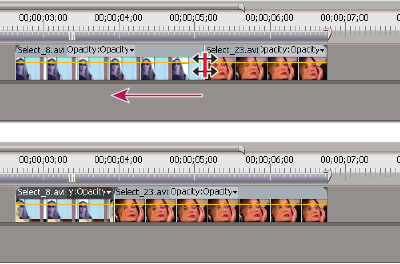 Timeline panel during (above) and after (below) a rolling edit
Perform a rolling edit using the Trim Monitor
- Display the edit point in the Trim Monitor.
-
Do
any of the following:
-
Position the pointer between the video images so that it changes into the Rolling Edit tool
; then
drag left or right. -
Drag the center timecode display left or right.
-
Drag the center jog disk left or right.
-
Click the timecode display between the views, type a valid timecode number to trim the edges of both clips to that frame, and press Enter (Windows) or Return (Mac OS).
-
Select the boxed number above the center jog disk, type a negative number to trim both clips left or type a positive number to trim both clips right, and press Enter (Windows) or Return (Mac OS).
-
Click the button that corresponds with the number of frames you want to edit. The –1 and –5 buttons trim both clips left; +1 and +5 trim both clips right.
Note: The large trim offset number is 5 frames by default, but you can set it to any number by specifying a number in the trim preferences. Choose Edit > Preferences > Trim (Windows) or Premiere Pro > Preferences > Trim (Mac OS).
-
Perform a ripple edit using the Ripple Edit tool
- Select the Ripple Edit tool
 .
. - In the Timeline panel, position the pointer over the
In or Out point of the clip you want to change until the Ripple‑in
icon
 or
the Ripple‑out icon
or
the Ripple‑out icon  appears,
and drag left or right. Subsequent clips in the track shift
in time to compensate for the edit, but their durations remain unchanged.
Alt‑drag (Windows) or Option-drag (Mac OS) to affect only the video
or audio portion of a linked clip.
appears,
and drag left or right. Subsequent clips in the track shift
in time to compensate for the edit, but their durations remain unchanged.
Alt‑drag (Windows) or Option-drag (Mac OS) to affect only the video
or audio portion of a linked clip.
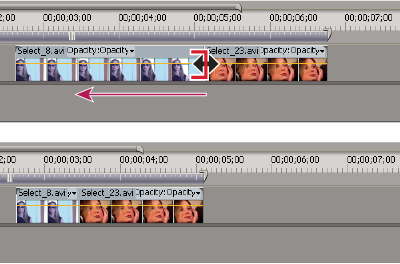 Timeline panel during (above) and after (below) a ripple edit
 When using the Selection tool, you can toggle from
the Trim‑in or Trim‑out icon to a Ripple edit icon by pressing the
Ctrl (Windows) or Command (Mac OS) key. Release Ctrl (Windows) or
Command (Mac OS) to revert to the Selection tool.
When using the Selection tool, you can toggle from
the Trim‑in or Trim‑out icon to a Ripple edit icon by pressing the
Ctrl (Windows) or Command (Mac OS) key. Release Ctrl (Windows) or
Command (Mac OS) to revert to the Selection tool.
Perform a ripple edit using the Trim Monitor
- Display the edit point in the Trim Monitor.
-
Do
any of the following:
-
Position the pointer in the left or right image so that it becomes the Trim‑out icon
 or
Trim‑in icon
or
Trim‑in icon  respectively,
and drag left or right to ripple‑edit the corresponding clip.
respectively,
and drag left or right to ripple‑edit the corresponding clip. -
Drag the timecode display under the left or right image to trim the corresponding clip.
-
Drag the left or right jog disk to trim the corresponding clip.
-
Drag the Outgoing Out Point icon
 in
the left view’s time ruler, or drag the Incoming In Point icon
in
the left view’s time ruler, or drag the Incoming In Point icon  in
the right view’s time ruler.
in
the right view’s time ruler. -
Drag the Out Shift or In Shift timecode number left or right to ripple‑edit the corresponding clip.
-
Click the left clip’s timecode display (for the left clip’s Out point) or the right clip’s timecode display (for the right clip’s In point), type a valid timecode number to trim the corresponding clip to that frame, and press Enter (Windows) or Return (Mac OS).
-
Click the Out Shift display (for the left clip’s Out point) or the In Shift display (for the right clip’s In point), type a negative number (to trim left) or a positive number (to trim right), and press Enter (Windows) or Return (Mac OS).
-