

Change clip speed
The speed of a clip is the playback rate compared to the rate at which it was recorded. Initially, a clip plays back at its normal, 100% speed. (Even if the source footage’s frame rate doesn’t match the project’s, the project automatically reconciles the difference and plays back the clip at its proper speed.)
Changing a clip’s speed causes its source frames to be either omitted or repeated during playback, thereby making the video or audio play faster or slower. So naturally, a change in speed results in a corresponding change in duration.
When you change the speed of a clip containing interlaced fields, you may need to adjust how Adobe Premiere Pro treats the fields, especially when the speed drops below 100% of the original speed. (See Create interlaced or non‑interlaced clips.)
 You can also set a clip’s speed to fill a duration
by performing a four‑point edit.
You can also set a clip’s speed to fill a duration
by performing a four‑point edit.In the Timeline panel, clips with speed changes are indicated as a percentage of the original speed.
 Change a whole clip’s speed or direction
You can change the speed, direction, or both for a clip as a whole.
- Set any of the following options, and then click OK:
- Speed
-
Sets the playback speed of the clip as a percentage of
its original speed. To change the speed without affecting the duration,
click the link button
 to unlink
speed and duration.
to unlink
speed and duration.
- Duration
-
Sets the duration of the clip. To change the duration
without affecting the speed, click the link button to
unlink speed and duration.
- Reverse Speed
- Plays the whole clip backwards.
- Maintain Audio Pitch
- Preserves the audio pitch when changing the speed of the clip.
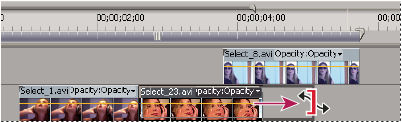
Change a clip’s speed using the Rate Stretch tool
You can change a clip’s speed to fit a duration.
 Select the Rate Stretch tool
  , and
drag either edge of a clip in the Timeline panel.
, and
drag either edge of a clip in the Timeline panel.
Change a clip’s video speed with Time Remapping
You can change the speed of the video portion of a whole clip.
The playback speed of the video portion of the clip changes and its duration expands or contracts depending on whether its speed is increased or decreased. The audio portion of the clip remains unchanged by Time Remapping, although it remains linked to the video portion.