

Select one or more clips
When you want to perform an action that affects a clip as a whole, such as applying an effect, deleting a clip, or moving a clip in time, first select the clip in the Timeline panel. The Tools panel contains selection tools that can handle various selection tasks.
 Do any of the following:
-
To select a single clip, use the Selection tool
 and
click a clip in the Timeline panel.
and
click a clip in the Timeline panel. -
To select only the audio or video portion of a clip, use the Selection tool
and Alt-click
(Windows) or Option-click (Mac OS) that portion. -
To select multiple clips by clicking, use the Selection tool
and
Shift‑click each clip you want to select. (Shift‑click a selected
clip to deselect it.) -
To select a range of clips, click in an empty area of the sequence under the time ruler, and then drag a rectangle (marquee selection) that includes any part of the clips you want to select.
-
To add or subtract a range of clips in the current selection, Shift‑drag a marquee around clips. Shift‑dragging a marquee that includes unselected clips adds them to the current selection. Shift‑dragging a marquee that includes selected clips deselects them.
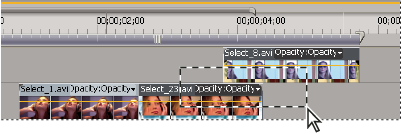 Selecting a range of clips by dragging a marquee
-
To select all clips that exist on and after a certain time on one track, select the Track Select tool
 and
click the clip at the beginning of the time span you want to select.
Shift‑click with the tool to select clips in all tracks.
and
click the clip at the beginning of the time span you want to select.
Shift‑click with the tool to select clips in all tracks.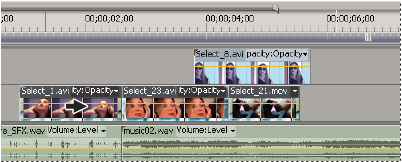 Selecting clips with the Track Select tool
-
To select clips in a track independently of its linked video or audio, Alt-click (Windows) or Option-click (Mac OS) using the Track Select tool
.