

Create an auto-play DVD or Blu-ray disc
You create auto-play discs by exporting
sequences or portions of sequences, from Adobe Premiere Pro into
Encore.
Note: Before you begin, make sure that Encore is installed
on the same computer as Adobe Premiere Pro.
- To add markers that can be used as chapter points in
your disc, drag the current-time indicator
 in
the sequence to the place where you want the chapter points to be.
Then, click the Set Encore Chapter Marker button
in
the sequence to the place where you want the chapter points to be.
Then, click the Set Encore Chapter Marker button  .
Note: Encore no longer imports Adobe Premiere Pro sequence markers as chapter points. For projects created with earlier versions of Adobe Premiere Pro, you must replace sequence markers with Encore markers if you want to retain those chapter points in discs made from the project.
.
Note: Encore no longer imports Adobe Premiere Pro sequence markers as chapter points. For projects created with earlier versions of Adobe Premiere Pro, you must replace sequence markers with Encore markers if you want to retain those chapter points in discs made from the project. - Select Direct Burn Without Menus.
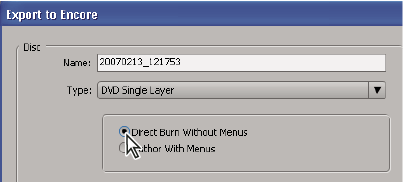 Selecting the Direct Burn Without Menus option in the Export To Encore dialog box