PremierePro

Export to iPods, cell phones, PSPs and other mobile devices

You can export a sequence or portion of a sequence into a file formatted for use on Apple iPods, 3GPP cell phones, Sony PSPs or other mobile devices. In Export Settings, simply select an H.264 format preset made for the target device. For a video on exporting video for various media and devices, see www.adobe.com/go/vid0264

  1. Do either of the following:
    • To export a sequence, select the sequence in the Timeline panel or Program Monitor.

    • To export a clip, select the clip in the Source Monitor or Project panel.

  2. To specify a range of frames to export, do either of the following:
    • In a sequence, set the work area.

    • In a clip, set an In point and Out point.

  3. Choose File > Export > Adobe Media Encoder.
  4. In the Adobe Media Encoder Export Settings area, specify the following options:
    Format
    Select H.264.

    Range
    Choose whether to export an entire sequence or clip, or a range of frames you specify: the work area of a sequence, or from the In point to the Out point of a clip.

    Preset
    Select the preset named for the target device from the menu.

    Export Video
    Select to include video in the exported file; deselect to exclude video from the exported file.

    Export Audio
    Select to include audio in the exported file; deselect to exclude audio from the exported file.

    Open in Device Central
    Select if you want to preview the file in Adobe Device Central after encoding (available only for H.264 presets designed for mobile devices).

  5. To customize the preset options, click an available tab (Video, Audio, and so on) and specify the appropriate options.
  6. To crop the image, specify cropping options in the Source panel. To deinterlace the image, select Deinterlace in the Output panel.
  7. To specify XMP data, choose XMP Info in the tabbed panel menu and then enter information in the dialog box.
    Note: The XMP Info option is available when exporting MPEG‑1 (Windows only), Windows Media (Windows only), MPEG‑2, or QuickTime formats.
  8. Click OK to begin encoding.

If Open In Device Central was selected, a preview of the exported movie will appear in the Device Emulator in Adobe Device Central.
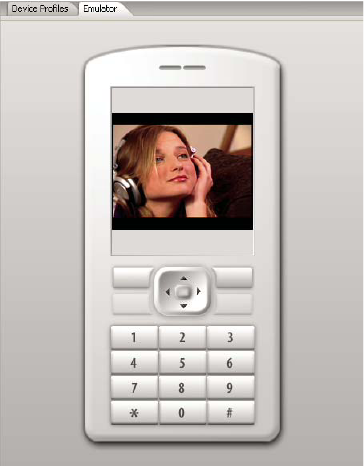
Previewing an exported cell phone movie on the Device Emulator in Adobe Device Central