

Brush Strokes effect
The Brush Strokes effect applies a rough painted look to an image. You can also use this effect to achieve a pointillist style by setting the length of the brush strokes to 0 and increasing the stroke density. Although you specify the direction of strokes, they are scattered randomly by a small amount to give a more natural result. This effect alters the alpha channel, as well as the color channels; if you’ve masked out a portion of the image, the brush strokes paint over the edges of the mask.
View full size graphic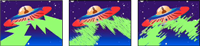
Original image (left), with effect applied (center), and with
Brush Size and Length adjusted (right)
- Stroke Angle
- The direction in which the strokes are made. The image is effectively shifted in this direction, which may cause some clipping at the clip boundaries.
- Brush Size
- The size of the brush, in pixels.
- Stroke Length
- The maximum length of each stroke, in pixels.
- Stroke Density
- Higher densities result in overlapping brush strokes.
- Stroke Randomness
- Creates non‑uniform strokes. The more randomness, the more the strokes vary from the brush and stroke settings you specify.
- Paint Surface
-
Specifies where brush strokes are applied:
- Paint On Original Image
- Puts the strokes on top of the unmodified clip. This setting is the default.
- Paint On Transparent
- Causes only the strokes themselves to appear, leaving the clip transparent between the strokes.
- Paint On White/Paint On Black
- Applies strokes over a white or black background.
- Blend With Original
- The effect’s transparency. The result of the effect is blended with the original image, with the effect result composited on top. The higher you set this value, the less the effect affects the clip. For example, if you set this value to 100%, the effect has no visible result on the clip; if you set this value to 0%, the original image doesn’t show through.