

Trim in the Source Monitor
The Source Monitor panel holds versatile tools for trimming clips. You can use them to set, move, or remove In and Out points, cue the current-time indicator to any of these points, or preview the frames at their locations.
 Set In and Out points in the Source Monitor
- Do one of the following:
-
Double‑click a clip in the Project panel to open it in the Source Monitor.
-
Double‑click a clip in the Timeline panel to open it in the Source Monitor.
-
- Do one of the following:
-
To mark an In point, go to the frame you want, and then click the Set In Point button
 .
. -
To mark an Out point, go to the frame you want, and then click the Set Out Point button
 .
.
-
Move In and Out points together
 In the Source Monitor’s time ruler,
drag the In/Out Grip (textured area at the center of the shaded
span between the In and Out points). Make sure that you drag the
textured area; otherwise, you simply cue the current‑time indicator.
In the Source Monitor’s time ruler,
drag the In/Out Grip (textured area at the center of the shaded
span between the In and Out points). Make sure that you drag the
textured area; otherwise, you simply cue the current‑time indicator.
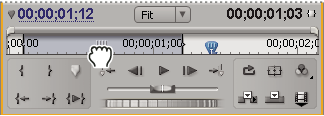
 This also works with sequence In and Out
points using the Program Monitor or the Timeline panel.
This also works with sequence In and Out
points using the Program Monitor or the Timeline panel.View In and Out frames in the Source Monitor
After you set In and Out points in the Source Monitor, you can drag the area between the points to view the In point frame and the Out point frames alongside each other in the Source Monitor. Viewing frames this way is useful when you set In and Out points that are a specific duration and you want to locate a section of a clip that best fits within that duration. It is also useful for making quick adjustments to In and Out points.
- Drag the In/Out Grip (textured area at the center of
the shaded span between the In and Out points).
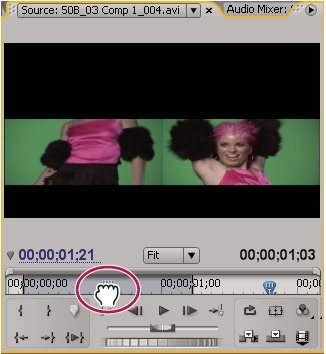 Viewing In and Out frames simultaneously in the Source Monitor
Cue to an In or Out point
You use the Source Monitor to cue a frame for a clip and the Program Monitor to cue the current frame for a sequence.
Do one of the following:-
To cue the current time to an In point, click the Go To In Point button
 .
. -
To cue the current time to an Out point, click the Go To Out Point button
 .
.
 and
the Go To Previous Edit button
and
the Go To Previous Edit button  .
.