

Select groups and objects in a group
Once objects are grouped, selecting any part of the group with the Selection tool or the Lasso tool selects the entire group. If you are unsure whether an object is a part of a group, select it with the Selection tool.
The Direct-Selection tool and Lasso tool let you select a single path or object that is part of one group or several groups. If you have groups of objects within other groups, you can select the next group in the grouping hierarchy by using the Group-Selection tool. Each successive click adds another subset of grouped objects to the selection.
 Select one or more groups with the Selection tool
-
Select
the Selection tool
 .
. - Do one of the following to any object that’s within the
group:
-
Click the object.
-
Drag around part or all of the object.
-
- To add or remove a group to the selection, hold down Shift while clicking the group to add or remove.
Select objects and groups within groups with the Selection tool
-
Select the Selection tool .
- Double-click a group. The group is selected and is highlighted with a gray border.
- Do any of the following:
-
Double-click to select further down into the group structure.
 Double-clicking is a
handy way to select objects (as opposed to faces and edges) within
a Live Paint group.
Double-clicking is a
handy way to select objects (as opposed to faces and edges) within
a Live Paint group. -
Click to select an object within the selected group.
-
Draw to add an object to the selected group.
-
- Double-click outside the group to deselect the group.
Select a single object within a group
-
Do one of the following:
-
Select the Group Selection tool
 , and
click the object.
, and
click the object. -
Select the Lasso tool
 , and
drag around or across the object’s path.
, and
drag around or across the object’s path. -
Select the Direct Selection tool
 , and
click within the object, or drag a marquee around part or all of
the object’s path.
, and
click within the object, or drag a marquee around part or all of
the object’s path.
-
- To add or remove an object or group to the selection (with any selection tool), hold down Shift and select the object to add or remove.
Select objects and groups with the Group Selection tool
-
Select the Group
Selection tool , and
click an object that’s within the group you want to select. The
object is selected.
- Click the same object again to select additional groups
that are grouped with the selected group until you have selected
everything you want to include in your selection.
 The first click with the Group Selection tool selects an object in a group (left); the second click selects the object’s group (right).
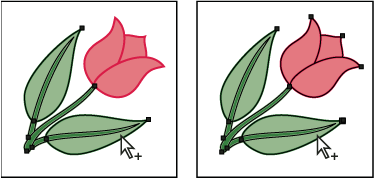 The third click adds the next group to the selection (left); the fourth click adds the third group (right).