

Select table elements
You can select an entire table, row, or column at once. You can also select one or more individual cells.
When you move your pointer over a table, row, column, or cell, Dreamweaver highlights all the cells in that selection so that you know which cells will be selected. This is useful when you have tables without borders, cells that span multiple columns or rows, or nested tables. You can change the highlight color in preferences.
 If
you position the pointer over a table’s border, then hold the Control
key (Windows) or Command key (Macintosh), the entire structure of
the table—that is, all cells in the table—is highlighted. This is
useful when you have nested tables and want to see the structure
of one of the tables.
If
you position the pointer over a table’s border, then hold the Control
key (Windows) or Command key (Macintosh), the entire structure of
the table—that is, all cells in the table—is highlighted. This is
useful when you have nested tables and want to see the structure
of one of the tables. Select an entire table
 Do one of the following:
-
Click the upper-left corner of the table, anywhere on the top or bottom edge of the table, or on a row or column’s border.
Note: The pointer changes to the table grid icon when you can select the table (unless you click a row or column border). -
Click in a table cell, then select the <table> tag in the tag selector at the lower-left corner of the Document window.
-
Click in a table cell, then select Modify > Table > Select Table.
-
Click in a table cell, click the table header menu, then select Select Table. Selection handles appear on the selected table’s lower and right edges
 .
.
Select individual or multiple rows or columns
- When the pointer changes to a selection arrow, click
to select a row or column, or drag to select multiple rows or columns.
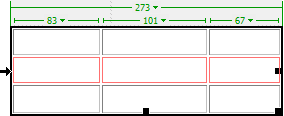
Select a single column
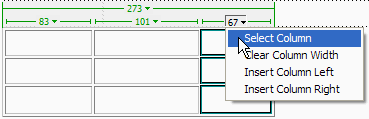
Select a single cell
Do one of the following:-
Click in the cell, then select the <td> tag in the tag selector at the lower-left corner of the Document window.
-
Control-click (Windows) or Command-click (Macintosh) in the cell.
-
Click in the cell and select Edit > Select All.
Select Edit > Select All again
when a cell is selected to select the entire table.Select a line or a rectangular block of cells
Do one of the following:-
Drag from a cell to another cell.
-
Click in one cell, Control‑click (Windows) or Command-click (Macintosh) in the same cell to select it, then Shift-click another cell.
All of the cells within the linear or rectangular region defined by the two cells are selected.
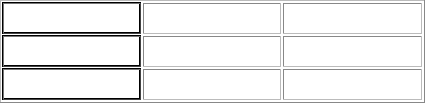
Select nonadjacent cells
Control‑click (Windows) or Command-click
(Macintosh) the cells, rows, or columns you want to select.
If each cell, row, or column you Control‑click or Command-click isn’t already selected, it’s added to the selection. If it is already selected, it’s removed from the selection.
Change the highlight color for table elements
- Select Edit > Preferences (Windows) or Dreamweaver > Preferences (Macintosh).
- Select Highlighting from the category list on the left,
make either of the following changes, and click OK.
-
To change the highlighting color for table elements, click the Mouse-Over color box, then select a highlight color using the color picker (or enter the hexadecimal value for the highlight color in the text box).
-
To enable or disable highlighting for table elements, select or deselect the Show option for Mouse-Over.
Note: These options affect all objects, such as absolutely-positioned elements (AP elements) and Layout mode view tables and cells, that Dreamweaver highlights when you move the pointer over them.
-