

Assets panel overview
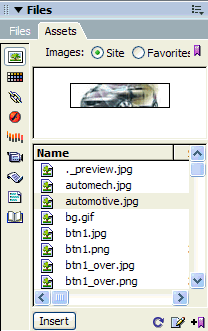
The Assets panel provides two ways to view assets:
- Site list
- Shows all of the assets in your site, including colors and URLs that are used in any document in your site.
- Favorites list
-
Shows only the assets you’ve explicitly chosen.
To switch between these two views, select either the Site or Favorites radio button above the preview area. (These two views are not available for the Templates and Library categories.)
- Images
-
 Image
files in GIF, JPEG, or PNG formats.
Image
files in GIF, JPEG, or PNG formats.
- Colors
-
 Colors
used in documents and style sheets, including colors of text, backgrounds,
and links.
Colors
used in documents and style sheets, including colors of text, backgrounds,
and links.
- URLs
-
 External
links in your current site documents, including FTP, gopher, HTTP,
HTTPS, JavaScript, e‑mail (mailto), and local file
(file://) links.
External
links in your current site documents, including FTP, gopher, HTTP,
HTTPS, JavaScript, e‑mail (mailto), and local file
(file://) links.
- Flash
-
 Files
in any version of Adobe Flash. The Assets panel displays only SWF files
(compressed Flash files), but not FLA (Flash source) files.
Files
in any version of Adobe Flash. The Assets panel displays only SWF files
(compressed Flash files), but not FLA (Flash source) files.
- Shockwave
-
 Files
in any version of Adobe Shockwave.
Files
in any version of Adobe Shockwave.
- Movies
-
 QuickTime
or MPEG files.
QuickTime
or MPEG files.
- Scripts
-
 JavaScript
or VBScript files. Scripts in HTML files (rather than in independent
JavaScript or VBScript files) do not appear in the Assets panel.
JavaScript
or VBScript files. Scripts in HTML files (rather than in independent
JavaScript or VBScript files) do not appear in the Assets panel.
- Templates
-
 Master
page layouts used on multiple pages. Modifying a template automatically
modifies all pages attached to it.
Master
page layouts used on multiple pages. Modifying a template automatically
modifies all pages attached to it.
- Library items
-
 Design
elements that you use in multiple pages; when you modify a library
item, all pages containing that item are updated.
Note: To appear in the Assets panel, a file must fall into one of these categories. Some other types of files are sometimes called assets, but they aren’t shown in the panel.
Design
elements that you use in multiple pages; when you modify a library
item, all pages containing that item are updated.
Note: To appear in the Assets panel, a file must fall into one of these categories. Some other types of files are sometimes called assets, but they aren’t shown in the panel.
By default, assets in a category are listed alphabetically by name, but you can sort them by type and several other criteria. You can also preview assets and resize the columns and the preview area.
 View an asset in the preview area
 Select the asset in the Assets
panel.
Select the asset in the Assets
panel.
For example, when you select a movie asset, the preview area shows an icon. To view the movie, click the Play button (the green triangle) in the upper-right corner of the preview area.
Display assets in a category
Sort assets
Click a column heading.
For example, to sort the list of images by type (so that all the GIF images are together, all the JPEG images are together, and so on), click the Type column heading.
Resize a column
Resize the preview area
Refresh the Assets panel
It can take a few seconds to create the Site list because Dreamweaver must first read the site cache.
Certain changes don’t appear immediately in the Assets panel. For instance, when you add or remove an asset from your site, the changes don’t appear in the Assets panel until you refresh the Site list by clicking the Refresh Site List button. If you add or remove an asset outside Dreamweaver—using Windows Explorer or the Finder, for example—you must rebuild the site cache to update the Assets panel.
When you remove the only instance of a particular color or URL in your site, or when you save a new file that contains a color or URL that isn’t already used in the site, the changes don’t appear in the Assets panel until you refresh the Site list.
- To refresh the Site list manually, click
the Refresh Site List button
 . Dreamweaver creates
the site cache or updates it as necessary.
. Dreamweaver creates
the site cache or updates it as necessary. - To refresh the Site list and manually rebuild the site cache, right-click (Windows) or Command-click (Macintosh) in the Assets list, then select Refresh Site List.