

Stack files
Stacks let you group files together under a single thumbnail. You can stack any type of file. For example, use stacks to organize image sequences, which often comprise many image files.
Commands that apply to a single file also apply to stacks. For example, you can label a stack just as you would a single file. Commands you apply to expanded stacks apply to all files in the stack. Commands you apply to collapsed stacks apply only to the top file in the stack (if you’ve selected only the top file in the stack) or to all files in the stack (if you’ve selected all files in the stack by clicking the stack border).
The default sort order in a stack is based on the sort order for the folder that contains the stack.
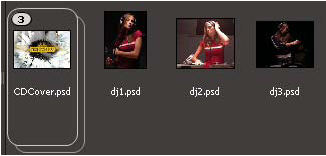
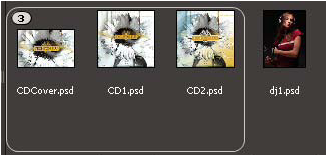
 Create a file stack
 Select the files you want to include
in the stack, and choose Stack > Group As Stack. The
first file you select becomes the stack thumbnail. The number on
the stack indicates how many files are in the stack.
Select the files you want to include
in the stack, and choose Stack > Group As Stack. The
first file you select becomes the stack thumbnail. The number on
the stack indicates how many files are in the stack. Manage stacks
Preview images in stacks
In stacks that contain 10 or more images, you can preview (scrub) the images, specify a frame rate, and enable onion skinning, which allows you to see preceding and succeeding frames as semitransparent overlays on the current frame.
- To preview a stack, hold the mouse over the stack in the Content panel until the slider appears, then click Play or drag the slider. If you don’t see the Play button or slider, increase the thumbnail size by dragging the Thumbnail slider at the bottom of the Bridge window.
- To set the playback frame rate, right-click (Windows) or Control-click (Mac OS) the stack and choose a frame rate from the Stack > Frame Rate menu.
- To set the default stack playback frame rate, choose a frame rate from the Stack Playback Framerate menu in Thumbnails preferences.
- To enable onion skinning, right-click (Windows) or Control-click (Mac OS) the stack and choose Stack > Enable Onion Skinning.