

Blending mode reference
All blending modes described in this section are available for blending between layers. Some of these options are available for paint strokes, layer styles, and effects.
For in-depth information about the concepts and algorithms behind these blending modes, see the PDF reference material on the Adobe website at www.adobe.com/go/learn_general_blendingmodes.
 Blending mode gallery
|
 underlying layer |
 source layer |
|
|
 Normal |
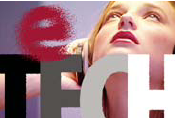 Dissolve |
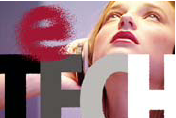 Dancing Dissolve |
|
 Darken |
 Multiply |
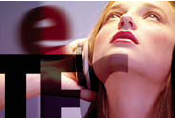 Linear Burn |
|
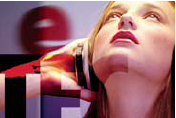 Color Burn |
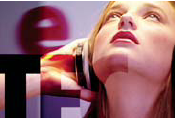 Classic Color Burn |
 Add |
|
 Lighten |
 Screen |
 Linear Dodge |
|
 Color Dodge |
 Classic Color Dodge |
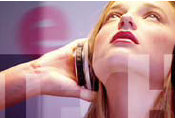 Overlay |
|
Soft Light |
 Hard Light |
 Linear Light |
|
 Vivid Light |
 Pin Light |
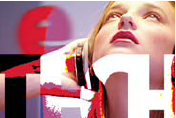 Hard Mix |
|
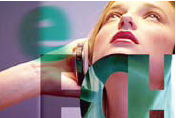 Difference |
 Classic Difference |
 Exclusion |
|
 Hue |
 Saturation |
 Color |
|
 Luminosity |
 Darker Color |
 Lighter Color |
|
 Stencil Alpha |
 Stencil Luma |
 Silhouette Alpha |
|
 Silhouette Luma |
 Alpha Add |
 Luminescent Premul |
Blending mode descriptions
In the following descriptions, these terms are used:
-
The source color is the color of the layer or paint stroke to which the blending mode is applied.
-
The underlying color is the color of the composited layers below the source layer or paint stroke in the layer stacking order in the Timeline panel.
-
The result color is the output of the blending operation; the color of the composite.
The stencil and silhouette blending modes use either a layer’s alpha channel or its luma values to affect the alpha channel of all layers beneath the layer. This differs from a track matte, which affects only one layer. Stencil modes cut through all layers, so that you can, for example, show multiple layers through the stencil layer’s alpha channel. Silhouette modes block out all layers below, so you can cut a hole through several layers at once. To keep the silhouette and stencil blending modes from cutting through or blocking all layers underneath, precompose the layers that you want to affect and nest them in your composition.
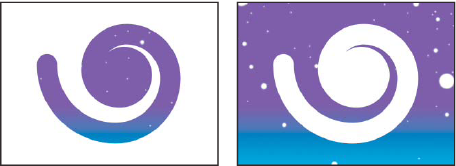
- Normal
- The result color is the source color. This mode ignores the underlying color. This is the default mode.
- Dissolve
- The result color for each pixel is either the source color or the underlying color. The probability that the result color is the source color depends on the opacity of the source. If opacity of the source is 100%, then the result color is the source color. If opacity of the source is 0%, then the result color is the underlying color. Dissolve and Dancing Dissolve do not work on 3D layers.
- Dancing Dissolve
- Same as Dissolve, except that the probability function is recalculated for each frame, so the result varies over time.
- Darken
- Each result color channel value is the lower (darker) of the source color channel value and the corresponding underlying color channel value.
- Multiply
- For each color channel, multiplies source color channel value with underlying color channel value and divides by maximum value for 8-bpc, 16-bpc, or 32-bpc pixels, depending on the color depth of the project. The result color is never brighter than the original. If either input color is black, the result color is black. If either input color is white, the result color is the other input color. This blending mode simulates drawing with multiple marking pens on paper or placing multiple gels in front of a light. When blending with a color other than black or white, each layer or paint stroke with this blending mode results in a darker color.
- Linear Burn
- The result color is a darkening of the source color to reflect the underlying color. Pure white produces no change.
- Color Burn
- The result color is a darkening of the source color to reflect the underlying layer color by increasing the contrast. Pure white in the original layer does not change the underlying color.
- Classic Color Burn
- The Color Burn mode from After Effects 5.0 and earlier, renamed Classic Color Burn. Use it to preserve compatibility with older projects; otherwise, use Color Burn.
- Add
- Each result color channel value is the sum of the corresponding color channel values of the source color and underlying color. The result color is never darker than either input color.
- Lighten
- Each result color channel value is the higher (lighter) of the source color channel value and the corresponding underlying color channel value.
- Screen
- Multiplies the complements of the channel values, and then takes the complement of the result. The result color is never darker than either input color. Using the Screen mode is similar to superimposing two different film negatives and printing the result.
- Linear Dodge
- The result color is a lightening of the source color to reflect the underlying color by increasing the brightness. If the source color is pure black, the result color is the underlying color.
- Color Dodge
- The result color is a lightening of the source color to reflect the underlying layer color by decreasing the contrast. If the source color is pure black, the result color is the underlying color.
- Classic Color Dodge
- The Color Dodge mode from After Effects 5.0 and earlier, renamed Classic Color Dodge. Use it to preserve compatibility with older projects; otherwise, use Color Dodge.
- Overlay
- Multiplies or screens the input color channel values, depending on the underlying color. The result preserves highlights and shadows in the underlying layer.
- Soft Light
- Darkens or lightens the color channel values of the underlying layer, depending on the source color. The result is similar to shining a diffused spotlight on the underlying layer. For each color channel value, if the source color is lighter than 50% gray, the result color is lighter than the underlying color, as if dodged. If the source color is darker than 50% gray, the result color is darker than the underlying color, as if burned. A layer with pure black or white becomes markedly darker or lighter, but does not become pure black or white.
- Hard Light
- Multiplies or screens the input color channel value, depending on the original source color. The result is similar to shining a harsh spotlight on the layer. For each color channel value, if the underlying color is lighter than 50% gray, the layer lightens as if it were screened. If the underlying color is darker than 50% gray, the layer darkens as if it were multiplied. This mode is useful for creating the appearance of shadows on a layer.
- Linear Light
- Burns or dodges the colors by decreasing or increasing the brightness, depending on the underlying color. If the underlying color is lighter than 50% gray, the layer is lightened because the brightness is increased. If the underlying color is darker than 50% gray, the layer is darkened because the brightness is decreased.
- Vivid Light
- Burns or dodges the colors by increasing or decreasing the contrast, depending on the underlying color. If the underlying color is lighter than 50% gray, the layer is lightened because the contrast is decreased. If the underlying color is darker than 50% gray, the layer is darkened because the contrast is increased.
- Pin Light
- Replaces the colors, depending on the underlying color. If the underlying color is lighter than 50% gray, pixels darker than the underlying color are replaced, and pixels lighter than the underlying color do not change. If the underlying color is darker than 50% gray, pixels lighter than the underlying color are replaced, and pixels darker than the underlying color do not change.
- Hard Mix
- Enhances the contrast of the underlying layer that is visible beneath a mask on the source layer. The mask size determines the contrasted area; the inverted source layer determines the center of the contrasted area.
- Difference
- For each color channel, subtracts the darker of the input values from the lighter. Painting with white inverts the backdrop color; painting with black produces no change.
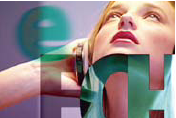
- Classic Difference
- The Difference mode from After Effects 5.0 and earlier, renamed Classic Difference. Use it to preserve compatibility with older projects; otherwise, use Difference.
- Exclusion
- Creates a result similar to but lower in contrast than the Difference mode. If the source color is white, the result color is the complement of the underlying color. If the source color is black, the result color is the underlying color.
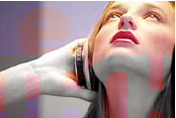
- Hue
- Result color has luminance and saturation of the underlying color, and the hue of the source color.
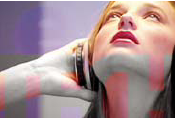
- Saturation
- Result color has luminance and hue of the underlying color, and the saturation of the source color.
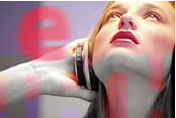
- Color
- Result color has luminance of the underlying color, and hue and saturation of the source color. This preserves the gray levels in the underlying color. This is useful for coloring grayscale image and for tinting color images.
- Luminosity
- Result color has hue and saturation of the underlying color, and luminance of the source color. This mode is the opposite of the Color mode.
- Darker Color
- Each result pixel is the color of darker of the source color value and the corresponding underlying color value. This is similar to Darken, but Darker Color does not operate on individual color channels.
- Lighter Color
- Each result pixel is the color of lighter of the source color value and the corresponding underlying color value. This is similar to Lighten, but Lighter Color does not operate on individual color channels.
- Stencil Alpha
- Creates a stencil using the layer’s alpha channel.
- Stencil Luma
- Creates a stencil using the layer’s luma values. The lighter pixels of the layer are more opaque than the darker pixels.
- Silhouette Alpha
- Creates a silhouette using the layer’s alpha channel.
- Silhouette Luma
- Creates a silhouette using the layer’s luma values. Creates transparency in painted areas of the layer, allowing you to see underlying layers or background. The luminance value of the blend color determines opacity in the result color. The lighter pixels of the source cause more transparency than the darker pixels. Painting with pure white creates 0% opacity. Painting with pure black produces no change.
- Alpha Add
- Composites layers normally, but adds complementary alpha channels to create a seamless area of transparency. Useful for removing visible edges from two alpha channels that are inverted relative to each other or from the alpha channel edges of two touching layers that are being animated.
- Luminescent Premul
- Prevents clipping of color values that exceed the alpha channel value after compositing by adding them to the composition. Useful for compositing rendered lens or light effects (such as lens flare) from footage with premultiplied alpha channels. May also improve results when compositing footage from other manufacturers’ matting software. When applying this mode, you may get the best results by changing interpretation of the premultiplied-alpha source footage to straight alpha.