

Blend effect
The Blend effect blends two layers using one of five modes.
You can blend layers more easily and quickly using blending modes, but you can’t animate blending modes. The advantage of using the Blend effect is that you can animate it. (See Blending modes.)
This effect works with 8-bpc and 16-bpc color.
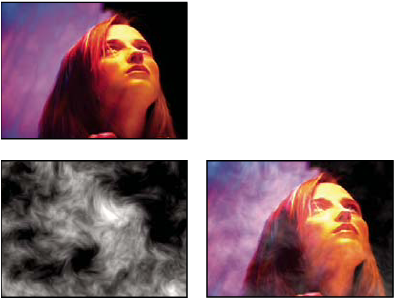
- Blend With Layer
-
The layer to blend with (the secondary or control layer). Note: To use a layer as a control layer for the Blend effect but not show the layer in the rest of the composition, deselect the control layer’s Video switch
 . (See Layer switches and columns in the Timeline panel.)
 - Mode
-
Blending mode:
-
Color Only colorizes each pixel in the original image based on the color of each corresponding pixel in the secondary image.
-
Tint Only is similar to Color Only but tints pixels in the original image only if they’re already colored.
-
Darken Only darkens each pixel in the original image that is lighter than the corresponding pixel in the secondary image.
-
Lighten Only lightens each pixel in the original image that is darker than the corresponding pixel in the secondary image.
-
Crossfade causes the original image to fade out while the secondary image fades in.
Note: You can create a crossfade without applying an effect by animating the Opacity property of one layer on top of another. However, this technique doesn’t work if the frontmost layer has any transparent portions (which allow the other layer to show through, even when at full opacity). The Crossfade mode creates a proper crossfade between two layers, even if both have transparent regions.
-
- Blend With Original
- The effect’s transparency. The result of the effect is blended with the original image, with the effect result composited on top. The higher you set this value, the less the effect affects the layer. For example, if you set this value to 100%, the effect has no visible result on the layer; if you set this value to 0%, the original image doesn’t show through.
- If Layer Sizes Differ
- Specifies how to position the control layer. The layer’s quality setting affects Blend only if Stretch To Fit is selected and if the layers are of different sizes. Stretching at Best quality is much smoother.