

Radial Shadow effect
The Radial Shadow effect creates a shadow from a point light source over the layer it’s applied to, rather than from an infinite light source (as with the Drop Shadow effect). The shadow is cast from the alpha channel of the source layer, allowing the color of that layer to influence the color of the shadow as light passes through semitransparent areas. You can use this effect to make a 3D layer appear to cast a shadow onto a 2D layer.
This effect works with 8-bpc color.
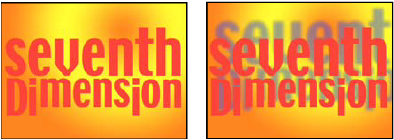
Original (left), and with effect applied (right)
- Shadow Color
-
The color of the shadow.
Note: The colors of the layer may override this option if you choose Glass Edges from the Render control menu. See the Render and Color Influence controls for more information.
- Opacity
- The opacity of the shadow.
- Light Source
-
The location of the point light source.
 Copy
and paste position keyframes or expressions from another effect’s
control point (for example, Lens Flare) to quickly create a shadow
that matches another effect’s light source.
Copy
and paste position keyframes or expressions from another effect’s
control point (for example, Lens Flare) to quickly create a shadow
that matches another effect’s light source. - Projection Distance
- The distance from the layer to the surface on which the shadow falls. The shadow appears larger as this value increases.
- Softness
- The softness of the shadow’s edges.
- Render
-
The type of shadow:
- Regular
- Creates a shadow based on the Shadow Color and Opacity values, regardless of semitransparent pixels in the layer. (If Regular is chosen, the Color Influence control is disabled.)
- Glass Edge
- Creates a colored shadow based on the color and opacity of the layer. If the layer contains semitransparent pixels, the shadow uses both the color and transparency of the layer. This option creates the appearance, for example, of sun shining through stained glass.
The more transparent the pixels in the layer are, the closer the shadow color matches the colors of the layer. If the layer contains no semitransparent pixels, Glass Edge has little result.
Note: Anti‑aliased edges produce colors in a shadow edge when you choose Glass Edge, even if the layer is fully opaque. The layer’s colors shine through these anti‑aliased edges, and the Shadow Color fills the center of the shadow. - Color Influence
- The fraction of the layer’s color values that appear in the shadow. At 100%, the shadow takes on the color of any semitransparent pixels in the layer. If the layer contains no semitransparent pixels, Color Influence has little result, and the Shadow Color value determines the shadow’s color. Decreasing the Color Influence value blends the colors of the layer in the shadow with the Shadow Color. Increasing Color Influence reduces the influence of the Shadow Color.
- Shadow Only
- Select to render only the shadow.
- Resize Layer
- Select to allow the shadow to extend beyond the layer’s original boundaries.