

Network rendering with watch folders
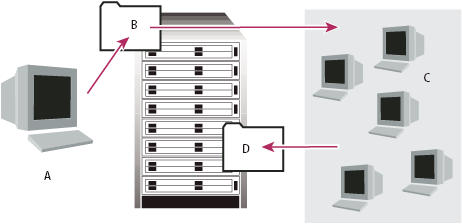
You can render one or more compositions from a project using multiple computers over a network in a fraction of the time that a single computer would require. Network rendering involves copying the project and source files to a networked folder, and then rendering the project.
If you have a full licensed copy of After Effects, you can set it up to work with render-only versions of After Effects called render engines. Your license entitles you to install as many copies of the render engine as you want on your network, as long as one activated copy of After Effects is installed on that network.
You install render engines in the same manner as the full version of the application, but you do not activate them. You run the render engine using the Adobe After Effects Render Engine shortcut in the Adobe After Effects CS3 folder. (See Installation.)
You cannot use a watch folder and multiple render engines to simultaneously render a single movie file. However, you can use multiple render engines to render a movie as a sequence of still-image files. You can then use a post-render action to create a single movie file from that still-image sequence. (See Use a post-render action.)
When you have multiple render engines on multiple computers monitoring a watch folder, they cooperate to achieve optimal efficiency. If your queued render items are set to Skip Existing Files (a render settings option), the render engines all work on a single render item at once—no render engine renders any frame another render engine has already worked on. If this option is not selected, each render engine handles a render item itself.
Network considerations
When working with multiple render engines on multiple computers, keep the following guidelines in mind:
-
When possible, identify folders using absolute file paths so that the paths are correctly identified for all render engines. This may mean mapping network drives to a particular drive letter on all machines (for example, H:\renders\watch\). Avoid using relative paths (for example, \\renders\watch).
-
Each Macintosh computer monitoring the watch folder must have a unique name. This means that you should rename your computers to not use the default name.
-
Make sure that all servers and clients (computers monitoring the watch folder) have hard disks with unique names.
-
Do not use the same computer to serve a watch folder and to run After Effects in Watch Folder mode. Use a dedicated server that’s accessible to all render engines to serve your watch folder.
-
Do not render to or initiate Watch Folder mode on the root of a volume or a shared folder that appears as the root when viewed from another computer. Specify a subfolder instead. Also, avoid using high-ASCII or other extended characters and slashes in filenames. For multiple-computer rendering, After Effects includes the Multi-Machine sample template that you can use as a starting point.
 When rendering across a network that includes volumes
using different network or operating systems, such as Windows, Mac
OS, Novell, and UNIX®, make sure that you
specify output files using a file-naming convention that’s compatible
with all rendering or destination volumes.
When rendering across a network that includes volumes
using different network or operating systems, such as Windows, Mac
OS, Novell, and UNIX®, make sure that you
specify output files using a file-naming convention that’s compatible
with all rendering or destination volumes.Project considerations
Make sure that you install all fonts, effects, and encoders (compressors) used in the project on all computers monitoring the watch folder. If a computer monitoring the watch folder can’t find fonts, effects, or encoders used in a project, the render fails.
When you install an After Effects render engine on a computer, it contains all the plug-ins included with After Effects. If a composition uses a plug-in from another manufacturer, that plug-in must be present on all computers that will render the composition. However, support for network rendering varies among plug-in manufacturers. Before you set up a network to render effects created by third-party plug-ins, see your plug-in’s documentation or contact the plug-in manufacturer and get answers to the following questions:
-
Does the plug-in’s license agreement allow installing multiple copies on a network for the purposes of rendering?
-
Are there any other limitations or tips that apply to using that plug-in for network rendering?
Collect Files folder considerations
When you use the File > Collect Files command, files relevant to a project are copied to a single folder. This folder includes a copy of the project file, a render control file (RCF), and other files, depending on the options you choose in the Collect Files dialog box. If you save the Collect Files folder to a networked computer other than a server, don’t run a render engine on that computer. Avoid saving the Collect Files folder to a local disk, the root level of a disk (such as C: in Windows or the Macintosh HD in Mac OS), or a shared folder, all of which can signify different locations to each render engine. All render engines must interpret the path in the same way.
Once the collected files
appear in the watch folder, all monitoring render engines start
rendering automatically. If you prefer, you can use the Collect
Files command to store compositions and their source footage to
a specified location and then initiate the watch-folder rendering
process later. Doing so renders the projects in alphabetical order,
rather than the order in which they were saved to the location.