

Work with layer anchor points
Transformations, such as rotation and
scale, occur around a layer’s anchor point (sometimes called transformation
point or transformation center). By default,
the anchor point  for
most layer types is at the center of a layer.
for
most layer types is at the center of a layer.
 The
easiest way to pan and scan over a large image is to
animate Anchor Point and Scale properties.
The
easiest way to pan and scan over a large image is to
animate Anchor Point and Scale properties.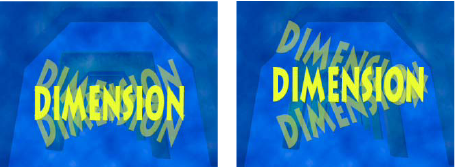
Anchor point in center of text layer (left) compared to anchor
point moved to the end of the text layer (right)
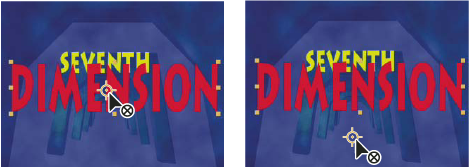
When you use the Pan Behind tool to move the anchor point
in the Composition panel (left), After Effects automatically compensates
for the move so that the layer maintains its position relative to the
composition frame (right).
Note: If you don’t see
the anchor point in the Layer panel, select Anchor Point Path from
the View menu at the bottom right of the Layer panel.
 Move a layer anchor point
- To move a layer anchor point in the Composition panel
without moving the layer, select the layer and use the Pan Behind
tool
 to
drag the anchor point.
Note: Moving an anchor point with the Pan Behind tool changes Position and Anchor Point values so that the layer remains where it was in the composition before you moved the anchor point. To change only the Anchor Point value, Alt-drag (Windows) or Option-drag (Mac OS) with the Pan Behind tool.
to
drag the anchor point.
Note: Moving an anchor point with the Pan Behind tool changes Position and Anchor Point values so that the layer remains where it was in the composition before you moved the anchor point. To change only the Anchor Point value, Alt-drag (Windows) or Option-drag (Mac OS) with the Pan Behind tool.
Reset a layer anchor point
- To reset the anchor point
to its default location in the layer, double-click the Pan Behind
tool button
in the Tools panel.
- To reset the anchor point to its default location in the layer, Alt-double-click (Windows) or Option-double-click (Mac OS) the Pan Behind tool button. The layer moves to the center of the composition