

Move a mask or pan a layer behind a mask
You can adjust the area that is visible through a mask by either moving the mask in the Layer or Composition panel or panning (moving) the layer behind the mask in the Composition panel. When you move a mask, the mask layer’s Position values remain constant, and the mask moves in relation to other objects in the Composition panel.
When you use the Pan Behind tool to pan a layer behind a mask, the mask’s position remains constant in the Composition panel but changes in the Layer panel. The masked layer’s Position values change in relation to the composition. As you pan past the edges of the layer’s frame, the layer’s Mask Path values also change. Using the Pan Behind tool saves steps; without it, you would have to change the masked layer’s Position and Mask Path properties manually. You can animate a layer panning behind another layer by setting keyframes for the masked layer’s Position and Mask Path properties.
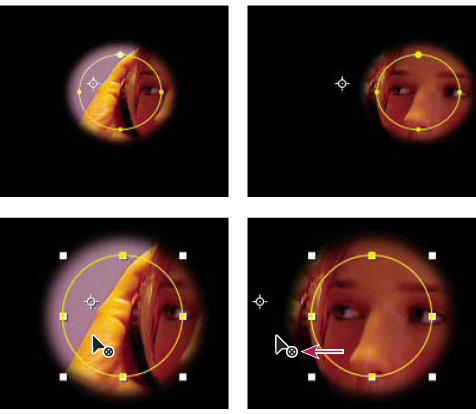
 Move a mask
- Select the mask or masks you want to move.
- In the Composition panel, drag the mask or masks to a new location. To constrain the movement of the mask or masks to horizontal or vertical, hold down Shift after you start dragging.
 .
.