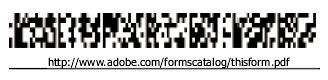
Value tab for form field properties
The Value tab appears for barcode form fields only.
- Encode Using
-
Activates these options:
- XML
-
Encodes the data into the barcode in standard XFDF format. JavaScript script is automatically generated.
- Tab Delimited
-
Encodes the fields into the barcode as tab-delimited values. JavaScript script is automatically generated. If the form is configured to output the data in individual XFDF or XDP files, the data must be in a tab-delimited format with the field names in the first line. This option is also useful if you want to fit more data into a barcode or if you intend to copy the data into database or spreadsheet tables.
- Pick
-
Opens a dialog box in which you select which user data fields will be encoded in the barcode for you to retrieve.
- Include Field Names
-
(Available only when Tab Delimited encoding is selected.) Encodes field names as the first line of the barcode contents. The values are encoded under them.
- Custom Calculation Script
-
Displays the default script. Click the Edit button to open the JavaScript Editor dialog box, in which you can write custom calculation scripts for your barcode.
- Reference to published form
-
Shows the path to the PDF form. You can edit this by typing in the URL to the published form. Later, you can re-create a digital version of the completed form by merging the form template with an instance of user-supplied data. You can also maintain the relationship between a specific form template and its related barcode data files. When you encode a barcode using XML values, the URL reference is encoded into the barcode and is displayed on the form, below the barcode.