Create alternate renditions
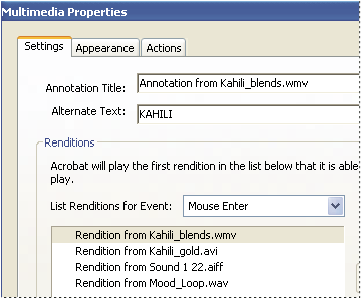
By default, the movie clip you add to a PDF is the first and only rendition listed in the Multimedia Properties dialog box. You can create alternate renditions or add other renditions to ensure that users can play the movie clip on their systems. For example, you can have a large, high-quality movie file and a smaller, low-quality movie file. You can specify system settings that a rendition requires to play; the rendition that best matches the user’s system is played.
Renditions are assigned to the Mouse Up action by default, which means that when the mouse button is clicked and released, the rendition is played. You can assign different renditions to different actions, although in most cases, the Mouse Up action is best.
- Using the Sound tool
 or
the Movie tool
or
the Movie tool  , double-click
the play area.
, double-click
the play area. - On the Settings tab, click Add Rendition, choose one
of the following options, and then click OK:
Option Description Using A File Double-click the file you want to add to the rendition list (for example, it may be a low-resolution version of the movie clip that contains the same content as the first rendition). The content type is selected automatically.
Using A URL Type the URL, and then specify the content type.
By Copying An Existing Rendition Select the rendition that you want to copy.
- Select the rendition, and then click Edit Rendition. Specify the minimum system requirements, playback requirements, and other settings to differentiate it from other renditions.
- Add and edit as many renditions as needed.
- Use the arrow keys on the right side of the list box to arrange the renditions in the appropriate order. Renditions are played in the order listed, provided the rendition meets the requirements you’ve specified.
- When you’re finished adding and editing renditions, click Close.
 Rendition settings
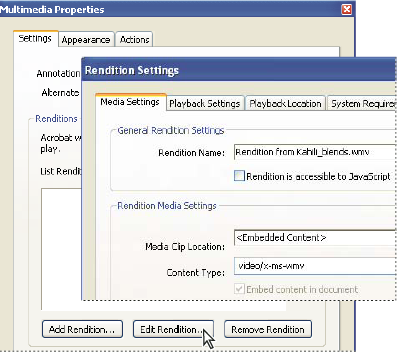
The Rendition Settings dialog box appears when you click Edit Rendition on the Settings tab of the Multimedia Properties dialog box.
- Media Settings
-
Use this tab to specify general properties for the movie clip:
- Rendition Name
-
Enter the name for the rendition, which will appear in the list of renditions. (This name does not determine which media file is played.)
- Rendition Is Accessible To JavaScript
-
Use this option if you’re using JavaScript code that makes use of the rendition.
- Media Clip Location
-
Specify the clip by typing or navigating to it. (When you specify the clip location, Content Type is set automatically. Changing the Content Type setting may cause problems playing the media.)
- Rendition Alternate Text
-
Type a description of the rendition that may be read aloud to visually impaired viewers.
- Allow Temp File
-
Specify whether writing a temp file is allowed and when. Some media players write a temp file when they play a movie clip. If you want to prevent users from easily copying the media content in a secure document, you may want to disallow the creation of temp files. However, selecting this setting may prevent the movie from being played by media players that require the use of temp files.
- Playback Settings
-
Use this tab to determine how the movie clip is played.
- Keep Player Open
-
Select whether you want the player to close after it plays the movie clip, be left open indefinitely, or be left open for the number of seconds you specify.
- Volume
-
Lets you specify how loud the movie is played.
- Show Player Controls
-
When selected, displays a controller bar at the bottom of the play area that lets users stop, pause, and play, provided the media player supports player controls.
- Repeat
-
Lets you replay a clip two or more times, or continuously.
- Player List
-
Click Add to specify a player and the settings that are required, preferred, or disallowed to play the movie clip. Select the name of the player, the minimum version number of the player, and the status. If you set the status of more than one player to Required, only one of the required players may be used to play the rendition. If you set the status of players to Preferred, these players are selected over non-preferred players (but not over required players). If you set the status of players to Disallowed, they are not used to play the rendition.
- Playback Location
-
Use this tab to determine whether a movie clip is played in the PDF, remains hidden while played (recommended for sound clips), is played in a floating window, or is played full screen. When Floating Window is selected, you can add a title, set the window position, and let the user resize or close the window. Note that the user’s preference settings may require (or ignore) title bar text for playback.
The window position is determined relative to the document window, application window, or, for dual-monitor configurations, the virtual desktop or primary desktop. You may also specify the width and height of the floating window. Click Get From Media to obtain the movie clip’s dimensions, if available, and then edit as necessary.
- System Requirements
-
Use this tab to choose the minimum settings for systems on which the movie clip is played. For example, you can require that a user have at least a 1024-by-768 screen resolution to play the movie clip. For options such as Play Dubbed Audio, you can select Either, Disabled, or Enabled. If you select Either, you defer to the settings in the user’s Multimedia panel of the Preferences dialog box. If you select Disabled or Enabled, the corresponding setting in Multimedia preferences must allow the rendition to be used. For example, if the Play Dubbed Audio option is enabled, the rendition may be used only if the Play Dubbed Audio preference option is selected.
- Playback Requirements
-
Use this tab to select which attributes are required for the rendition to be played. The attributes on this tab include settings from the other tabs, letting you indicate which ones are required. For example, if you set the volume to 50% in the Playback Requirements tab, and you don’t want the rendition to be played unless this volume level can be used, select the Required box next to Volume.