Organizer window overview
Organizer helps you find PDFs that you’ve previously opened and PDFs that you’ve organized into collections and favorites. With Organizer, you can see thumbnail images of PDF pages to quickly identify files. You can also use Organizer to organize related PDFs without changing their location in your file structure, and quickly browse, find, and sort PDFs that you recently viewed.
You access the Organizer and Organizer-related commands on the File menu. After you select one or more files within the Organizer, you can start one of several different tasks using the buttons above the file list.
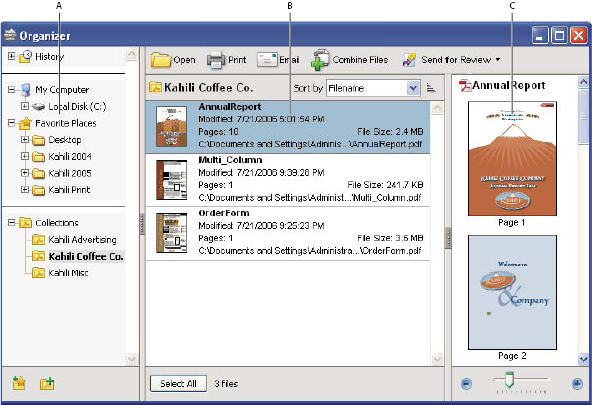
- A.
- Categories pane
- B.
- Files pane
- C.
- Pages pane
 Categories pane
The categories pane of the Organizer window is divided vertically into sections that contain categories. These items can help you locate and organize PDFs that reside on your computer, on a network, and on the web.
- History
-
Contains subcategories that list all the PDFs that you’ve opened during a specified period of time. You can’t change the subcategory names or manually add PDFs to the History, which is automatically updated each time you open a PDF and as time passes, but you can clear the entire history by using the Clear History button in the files pane. You can also control the maximum length of the file history or turn it off with the Remember Files In Organizer History For option in the Startup preferences.
- My Computer (Windows) or [disk name] (Mac OS)
-
Lists the hard drives and folders in their current hierarchy. This category is especially useful if you know where a particular PDF resides.
- Favorite Places
-
Lists any folders, network locations, and web directories that you’ve specified as favorite destinations. This category functions like bookmarks or favorite destinations that you create for quick access in a web browser, except that the destinations are folders or disk drives that contain PDFs. You can add or remove destinations from the Favorite Places list, but you can’t edit the destination names.
- Collections
-
Contains collection folders that list all PDFs that you’ve associated with each particular collection folder. Each collection folder can point to multiple PDFs no matter where each PDF is located; for example, a single collection folder can list PDFs that are actually located in different folders on your computer, on a network, and also on the web. You can change each collection folder’s name, add new collection folders, and add PDFs to each collection folder.Note: Collections and PDF packages both involve multiple PDFs, but in very different ways. A PDF package is itself a PDF file that can be composed of multiple PDFs and that exists in a folder on your computer. For example, you can attach a PDF package to an email. Collections are more like reminders that help you find related files that may be stored in different locations on your computer.
Files pane
The files pane in the Organizer window lists the PDFs that are within the subcategory or folder selected in the categories pane; each PDF listing shows the filename, modification date, page number, file size, location, and a thumbnail image of the first page. You can sort the list by filename, metadata information, number of pages, file size, modification date, and date last opened.
Use the buttons at the top of the Organizer window to open, print, email, or combine one or more selected PDFs; in addition, you can send a selected PDF for review or approval, or upload it for a browser-based review.
Pages pane
The pages pane of the Organizer window displays thumbnails for every page of all PDF files that are selected in the files pane. The Zoom slider and buttons at the bottom of the pages pane let you adjust the size of the page thumbnails. If a selected PDF file contains special document properties, such as layers, attachments, or a digital signature, an icon appears for each property in the thumbnail’s title bar. A tool tip appears when you position the pointer over the icon, identifying those properties.