Scan a paper document to PDF
You can create a PDF file directly from a paper document, starting within Acrobat and using your scanner. In Windows XP, Acrobat supports TWAIN scanner drivers and Windows Image Acquisition (WIA) drivers.
If you need to convert large numbers of paper documents to PDF archives, consider purchasing Adobe Acrobat Capture®.
For tips about scanning, see the supplementary Help topics on the Adobe website.
 Scan a paper document directly
to PDF
Scan a paper document directly
to PDF
- In the Acrobat Scan dialog box, select basic scanning
options.
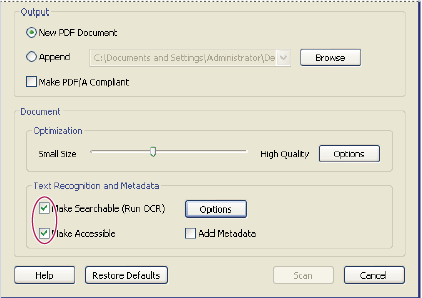
Note: The Options button under Text Recognition And Metadata is not available unless Make Searchable (Run OCR) is selected.
Optimize a scanned PDF
- Open a PDF created from a scanned document.
- Choose Document > Optimize Scanned PDF.
- Select options in the dialog box, and click OK.
The options available in the Optimized Scanned PDF dialog box also appear in the Optimization Options dialog box, which are described in detail under that heading in this topic.
Basic scanning options
- Scanner
-
Select an installed scanner. You must have the manufacturer’s scanning software installed on your computer.
- Scanner Options (Windows only)
-
Click to open the Scanner Options dialog box. (Available only after you select a scanner.)
- Sides
-
Specify single or double-sided scanning. If you select Both Sides and the scanner’s own settings are for only one side, the scanner setting overrides the Acrobat settings.
Note: You can scan both sides of pages even on scanners that do not themselves support two-sided scanning. When Both Sides is selected, a dialog box appears after the first sides are scanned. You can then reverse the original paper documents in the tray, select the Scan Reverse Side (Put Reverse Of Sheets) option in that dialog box, and click OK to scan the back sides of the paper pages. This produces a PDF with all pages in the proper sequence. - Color Mode (Windows only)
-
Select a basic color mode (Color, Black and White, or Grayscale) supported by your scanner. This option is enabled if your Scanner Options are set to use the Acrobat scanning dialog box instead of the scanner application.
- Resolution (Windows only)
-
Select a resolution supported by your scanner. This option is enabled if your Scanner Options are set to use the Acrobat scanning dialog box instead of the scanner application.
Note: If you select a Color Mode or Resolution option not supported by your scanner, a message appears and your scanner’s application window opens, where you can select different options. - New PDF Document
-
Select this to create a new PDF; deselect it if you want to append the scanned pages to an existing PDF.
- Append
-
Select this if you want to add the converted scan to an existing PDF. Use the pop-up menu to select an open PDF or click Browse to find and select another PDF.
- Make PDF/A Compliant
-
Select this option to make the PDF conform to ISO standards for PDF/A-1b. When selected, only Searchable Image (Exact) is available in the Recognize Text - Settings dialog box for the PDF Output Style option.
- Optimization
-
Drag the slider to set the balance point between file size and quality. Click the Options button if you want to customize optimization with specific settings for file compression and filtering.
- Make Searchable (Run OCR)
-
Select this option to make text and images in the PDF searchable and selectable. This option applies OCR and font and page recognition to the text images and converts them to normal text. Click the Options button to select specific settings in the Recognize Text - Settings dialog box.
- Make Accessible
-
Select this option to add tags to the document, which improve accessibility for disabled users. (Available only when Make Searchable (Run OCR) is selected.)
- Add Metadata
-
Select this if you want to add information about the scanned document to the PDF file. When this option is selected, the Document Properties dialog box appears after scanning, where you can type in the metadata you want to add.
Scanner Options dialog box
- Data Transfer Method
-
Native Mode transfers in the default mode for your scanner. Memory Mode is automatically selected for scanning in resolutions over 600 dots per inch (dpi).
- User Interface
-
The Hide Scanner’s Native Interface option bypasses the windows and dialog boxes provided by the scanner manufacturer. Instead, scanning from Acrobat opens the Acrobat Scan dialog box.
- Paper Size
-
The menu lists available standard page sizes.
- Invert Black And White
-
This option creates positive images from black-and-white negatives, for example.
Optimization Options dialog box
The Optimization Options dialog box for image settings controls how scanned images are filtered and compressed for the PDF. Default settings are suitable for a wide range of document pages, but you may want to customize settings for higher quality images, smaller file sizes, or scanning issues.
- Automatic
-
Applies default settings to balance file size and quality at a moderate level.
- Aggressive
-
Applies settings that minimize file size. In some cases, selecting this option may visibly affect the quality of the scanned PDF.
- Custom Settings
-
Makes additional settings available under Compression and Filtering and disables the Aggressive setting under Automatic. If you select Custom Settings, the Color/Grayscale or Monochrome settings are available, depending on the option you selected in the Acrobat Scan dialog box.
- Color/Grayscale settings
-
When scanning color or grayscale pages, select one of the following:
- Lossless
-
Does not apply compression or filters—such as Deskew, Background Removal, and so forth—to scanned pages.
- Adaptive
-
Divides each page into black-and-white, grayscale, and color regions and chooses a representation that preserves appearance while highly compressing each kind of content. Recommended scanning resolutions are 300 pixels per inch (ppi) for grayscale and RGB input, or 600 ppi for black-and-white input.
- JPEG
-
Applies JPEG compression to the entire grayscale or RGB input page.
Note: The scanner uses either the selected Color/Grayscale option or the selected Monochrome option. Which one is used depends on the settings you select in the Acrobat Scan dialog box or in the scanner’s TWAIN interface, which may open after you click Scan in the Acrobat Scan dialog box. (By default, the scanner application dialog box does not open.)
- Monochrome
-
When scanning black-and-white or monotone images, select one of the following:
- JBIG2
-
Applies the JBIG2 compression method to black-and-white input pages. Settings of 0.95 or higher use the lossless method; at lower settings, text is highly compressed. Text pages typically are 60% smaller than CCITT Group 4 compressed pages, but processing is slow. Compatible with Acrobat 5.0 (PDF 1.4) and later.
Note: For compatibility with Acrobat 4.0, use a compression method other than JBIG2. - Adaptive
-
(As described above, under Color/Grayscale settings.)
- CCITT Group 4
-
Applies CCITT Group 4 compression to black-and-white input page images. This fast, lossless compression method is compatible with Acrobat 3.0 (PDF 1.2) and higher.
- Deskew
-
Rotates any page that is not square with the sides of the scanner bed, to make the PDF page align vertically. Choose Automatic or Off.
- Background Removal
-
Whitens nearly white areas of grayscale and color input (not black-and-white input).
 For best results, calibrate your
scanner’s contrast and brightness settings so that a scan of a normal
black-and-white page has dark gray or black text and a white background.
Then, Off or Low should produce good results. If scanning off-white paper
or newsprint, use Medium or High to clean up the page.
For best results, calibrate your
scanner’s contrast and brightness settings so that a scan of a normal
black-and-white page has dark gray or black text and a white background.
Then, Off or Low should produce good results. If scanning off-white paper
or newsprint, use Medium or High to clean up the page. - Edge Shadow Removal
-
Removes dark streaks that occur at the edges of scanned pages, where the scanner light is shadowed by the paper edge. Choose Off, Cautious, or Aggressive.
- Despeckle
-
Removes isolated black marks in black-and-white page content. Low uses a basic peephole filter. Medium and High use both a peephole filter and a large area filter that removes larger spots farther from nearby features.
- Descreen
-
Removes halftone dot structure, which can reduce JPEG compression, cause moire patterns, and make text difficult to recognize. Suitable for 200 to 400 ppi grayscale or RGB input or, for Adaptive compression, 400 to 600 ppi black-and-white input. The Automatic setting (recommended) applies the filter for 300 ppi or higher grayscale and RGB input. Select Off when scanning a page with no pictures or filled areas, or when scanning at a resolution higher than the effective range.
- Halo Removal
-
When On (recommended), removes excess color at high-contrast edges, which may have been introduced during either printing or scanning. This filter is used only on color input pages.