Convert web pages to PDF in Internet Explorer (Windows)
When you install Acrobat, Internet Explorer (version 6.0 and later) gains an Adobe PDF toolbar. Using the commands on this toolbar, you can convert the currently displayed web page to PDF in various ways: You can convert the entire web page or just a selected part of it; you can create a new PDF or append the converted web page to an existing PDF. The Adobe PDF toolbar menu also contains commands that initiate further actions after conversion, such as attaching the new PDF to a new email message or printing it.
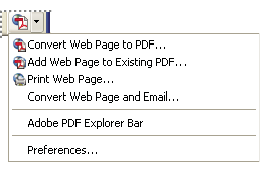
 Convert a web page to PDF
Convert part of a web page to PDF
You can convert text or images on a web page. This is useful if you want to save content without saving navigation frames or advertising.
- Drag the pointer to select text and images on a web page.
- On the Adobe PDF toolbar menu, choose one of the following:
-
To create a new PDF, choose Convert Web Page To PDF. Then select a name and location for the PDF.
-
To append the selected content to another PDF, choose Add Web Page To Existing PDF. Then locate and select the PDF to which the selection will be added.
-
- Make sure that Only Convert Selection is selected, and click Save.
Convert a linked web page to PDF
 In the open web page, right-click the
linked text and choose one of the following:
In the open web page, right-click the
linked text and choose one of the following:-
To convert the linked web page to a new PDF, choose Convert Link Target To Adobe PDF.
-
To add the linked web page to an existing PDF, choose Convert Link Target To Existing PDF. Then locate and select the existing PDF, and click Save.
Set PDF conversion preferences
for Internet Explorer (Windows)
The Internet Explorer PDF preferences determine only whether converted files open in Acrobat automatically, and whether you are prompted to confirm the deletion of files or addition of pages to an existing PDF.
- In Internet Explorer, choose Preferences from the Adobe PDF toolbar menu.
- Select and deselect options in the Adobe PDF Preferences,
as needed:
-
To continue working in Internet Explorer after the conversion without opening the new PDF in Acrobat, deselect Open PDF Files In Acrobat After Conversion.
-
To delete PDF files without further notice, deselect Ask For Confirmation Before Deleting PDF Files.
-
To append PDF files without further notice, deselect Ask For Confirmation Before Adding Pages To PDF Files.
-
To skip alerts reminding you that the PDF file you are appending to has been changed, deselect Warn Before Adding Pages If The PDF File Has Been Modified.
-