Form elements in Acrobat
A PDF form created with Acrobat can contain the following types of elements:
- Barcodes
-
Encode the input from selected fields and display it as a visual pattern that can be interpreted by decoding software or hardware (available separately).
- Buttons
-
Initiate a change on the user’s computer, such as opening a file, playing a sound, or submitting data to a web server. These buttons can be customized with images, text, and visual changes triggered by mouse actions.
Note: Action buttons have a different purpose than radio buttons, which represent data choices made by the user. - Check boxes
-
Present yes-or-no choices for individual items. If the form contains multiple check boxes, the user can typically select as many or few of these as wanted.
- Combo boxes
-
Let the user either choose an item from a pop-up menu or type in a value.
- Digital signature field
-
Lets the user electronically sign a PDF document with a digital signature.
- Document message bar
-
Displays automatically generated information about the PDF form and can display action buttons and other options. The document message bar also informs Reader users about their usage rights for the form.Note: If form recipients are using older versions of Acrobat or Adobe Reader, the document message bar may not be visible or may contain different information.
- List boxes
-
Display a list of options the user can select.Note: You can set a form field property that enables the user to Shift-click or Ctrl-click/Control-click to select multiple items on the list.
- Radio buttons
-
Present a group of choices from which the user can select only one item.
- Text boxes
-
Let the user type in text, such as name, address, or phone number.
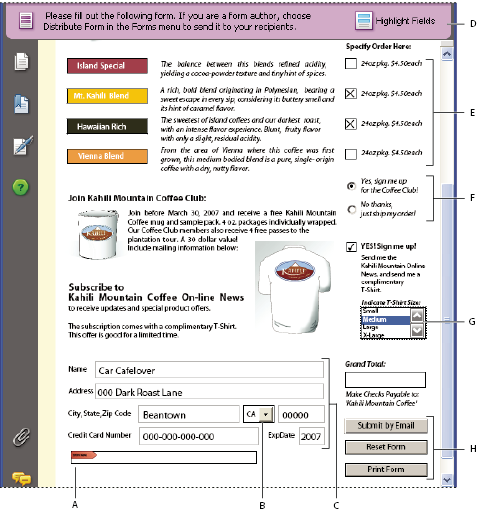 Adobe Acrobat PDF form
- A
- .Digital signature field
- B
- .Combo box
- C
- .Text boxes
- D
- .Forms document message bar
- E
- .Check boxes
- F.
- Radio buttons
- G.
- List box
- H.
- Buttons