Format tab for form field properties
The Format tab appears in the Properties dialog box for only text form fields or combo box form fields. The options that are available depend on your selection in the Select Format Category pop-up menu.
 None
None
No additional options are available. The input in a text or combo box with this property does not require any specific formatting.
Number
Automatically imposes the selected formatting options on numeric data entries.
- Decimal Places
-
Sets the number of digits that appear to the right of the decimal point.
- Separator Style
-
Sets the placement of commas and periods.
- Currency Symbol
-
Sets the type of currency, such as Euros, Dollars, or Yen.
- Negative Number Style
-
Sets how negative numbers are displayed. You can choose Show Parentheses, Use Red Text, neither, or both.
Percentage
Automatically imposes the selected formatting options on numeric data expressed as a percentage.
- Decimal Places
-
Sets the number of digits that appear to the right of the decimal point
- Separator Style
-
Sets the placement of commas and periods.
Date
List includes one-, two-, and four-digit variations where d stands for the day, m stands for month, and y stands for year.
Time
List includes display variations where h stands for the hour on a 12-hour clock, H stands for the hour on a 24-hour clock, MM stands for minutes, ss stands for the seconds, and tt stands for AM or PM.
Special
- Zip Code
-
For a five-digit U.S. postal code.
- Zip Code + 4
-
For a nine-digit U.S. postal code.
- Phone Number
-
For a ten-digit telephone number.
- Social Security Number
-
For a nine-digit U.S. Social Security Number. Hyphens are inserted automatically after the third and fifth digits.
- Arbitrary Mask
-
Changes the format category to Custom and makes another text box available, in which you can type a custom format. Use this option to specify which types of characters the user can enter in any given position, and how the data displays in the field.
- A
-
Accepts only letters (A–Z, a–z).
- X
-
Accepts spaces and most printable characters, including all characters available on a standard keyboard and ANSI characters in the ranges of: 32–126 and 128–255.
- O
-
The letter “O” accepts alphanumeric characters (A–Z, a–z, and 0–9).
- 9
-
Accepts only numeric characters (0–9).
For example, a mask setting of AAA--p#999 accepts the input BOE--p#767. A mask setting of OOOOO@XXX accepts the input vad12@3Up.
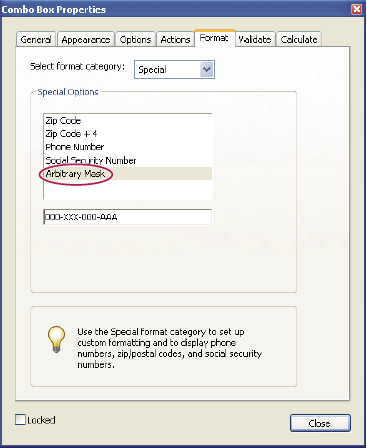 Example of an Arbitrary Mask entry
Custom
Makes additional options available to form designers who want to write their own JavaScripts for formatting and keystrokes. For example, a custom script could define a new currency format or limit the user entry to specific keystroke characters.
- Custom Format Script
-
Displays any custom scripts you have added for formats. The Edit button opens a dialog box in which you can write and add new scripts.
- Custom Keystroke Script
-
Displays any custom scripts you have added to validate keystrokes. The Edit button opens a dialog box in which you can write and add new scripts.
To get the Acrobat JavaScript Scripting Reference, go to the JavaScript support page (English only) of the Adobe website.