Add an attachment
You can attach PDFs and other types of files to a PDF. If you move the PDF to a new location, the attachments move with it. Attachments may include links to or from the parent document or to other attachments.
Don’t confuse attached
comments with file attachments. Attached comments appear on the
page with the File Attachment icon  or the
Speaker icon
or the
Speaker icon  , and
in the Comments List with other comments. (See Add comments in a file attachment.)
, and
in the Comments List with other comments. (See Add comments in a file attachment.)
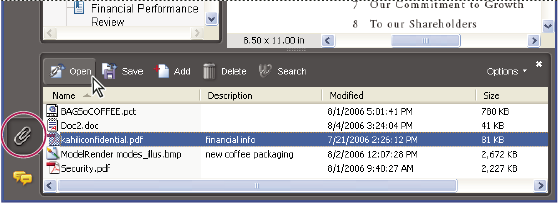
Use the Attachments panel to add, delete, or view attachments.
- Add an attachment by doing one of the following:
-
Choose Document > Attach A File.
-
Click the Attach A File button
 on
the File toolbar. Note: The Attach A File button doesn’t appear by default. To add it, right-click/Control-click the toolbar background, choose More Tools, select Attach A File located under File Toolbar, and click OK.
on
the File toolbar. Note: The Attach A File button doesn’t appear by default. To add it, right-click/Control-click the toolbar background, choose More Tools, select Attach A File located under File Toolbar, and click OK.
-