Show or hide layers
Information can be stored on different layers of a PDF. The layers that appear in the PDF are based on the layers created in the original application. You cannot create layers in Acrobat; however, you can examine layers and show or hide the content associated with each layer using the Layers panel in the navigation pane. Items on locked layers cannot be hidden.
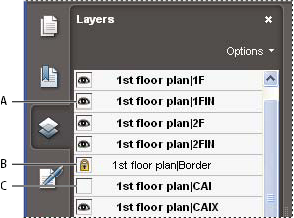
- A.
- Eye icon indicates a displayed layer
- B.
- Locked layer
- C.
- Hidden Layer
- Choose View > Navigation Panels > Layers,
and then do one of the following:
-
To hide a layer, click the eye icon. To show a hidden layer, click the empty box. (A layer is visible when the eye icon is present, and hidden when the eye icon is absent. This setting temporarily overrides the settings in the Layer Properties dialog box.)
-
To show or hide multiple layers, choose an option from the Options menu in the Layers panel.
-
- From the Options menu in the Layers panel, choose one
of the following:
Option Description List Layers For All Pages Shows every layer across every page of the document.
List Layers For Visible Pages Shows layers only on the currently visible pages.
Reset To Initial Visibility Resets layers to their default state.
Apply Layer Overrides Displays all layers. This option affects all optional content in the PDF, even layers that are not listed in the Layers panel. All layers are visible, regardless of the settings in the Layers Properties dialog box. You cannot change layer visibility using the eye icon until you deselect this command. You can edit layer properties in the Layer Properties dialog box, but changes (except changes to the layer name) are not effective until you choose Reset To Initial Visibility in the Options menu.
Note: You cannot save the view of a layered PDF by using the eye icon in the Layers panel to show and hide layers. When you save the file, the visibility of the layers automatically reverts to the initial visibility state.If you want to save a different view of a layered PDF, you must change the default state of the layers in the Layer Properties dialog box.