View color warnings
Output problems can occur when a document’s colors are not reproducible on a particular press, or when rich black is used unintentionally on type. To diagnose such color problems before handing off a PDF for high-end output, you can use the various color warnings in the Output Preview dialog box. Pixels in areas that trigger the warning are displayed in the warning color, which is identified by the swatch color next to the warning type.
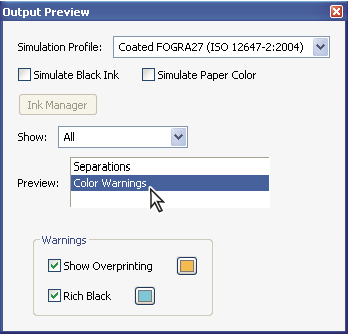
- Select either or both of the following options:
Option Description Show Overprinting Indicates where on the page overprinting will appear in color-separated output. If you select Simulate Overprinting in the Output panel of the Advanced Print Setup dialog box, you can also see overprinting effects when you output to a composite printing device. This option is useful for proofing color separations.
Rich Black Indicates areas that will print as rich black—process black (K) ink mixed with color inks for increased opacity and richer color. Rich-black objects knock out the colors beneath, preventing background objects from showing through. This effect is usually desirable only for large, black, display type. In most cases, rich black is undesirable for body type, and is usually the result of an error, such as using RGB instead of CMYK for the type.
 To change the warning color used
in the preview, select a color from the swatches color picker.
To change the warning color used
in the preview, select a color from the swatches color picker.