Convert PDFs to PDF/X or PDF/A
You can validate PDF content against PDF/X or PDF/A criteria and save a copy of the PDF as PDF/X or PDF/A, provided it complies with the specified requirements. For example, under certain circumstances, an ICC profile that describes the destination device is required for PDF/X-1a, PDF/X-3, and PDF/X-4 compliance. If your document doesn’t have an embedded ICC output profile, you can embed one before saving.
The PDF/X or PDF/A icon at the bottom left of the Preflight dialog box indicates the PDF/X or PDF/A status of the current document.
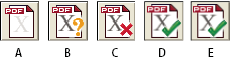
- A.
- Convert to PDF/X
- B.
- Verify PDF/X
- C.
- Not a valid PDF/X
- D.
- Valid PDF/X
- E.
- Remove PDF/X
- If the PDF/X or PDF/A icon at the bottom left
of the Preflight dialog box indicates that the PDF is not PDF/X-
or PDF/A-compliant, do one of the following:
-
Click the icon next to the text “Not a PDF/X file” or “Not a PDF/A file.”
-
Choose Convert Current PDF To PDF/X (or PDF/A) from the Options menu.
-
- Select a PDF/X or PDF/A standard.
- Specify conversion options, and click OK.
- Do one of the following, depending on the results of
the conversion:
-
If the conversion succeeds, save the PDF. A green check mark appears in the Preflight dialog box.
-
If the conversion fails, view the results in the Results list, or click Report to see the results. A red X appears in the Preflight dialog box. When prompted, click OK to view the Preflight results.
-
 PDF/X and PDF/A conversion options
- PDF/X and PDF/A versions
-
Select the PDF/X or PDF/A version to convert the PDF to.
- Trapped Key (PDF/X only)
-
A PDF/X-compliant file requires the Trapped key to be set to True or False. If you know that the document contains trapping information, select Set Trapped Key To “True.” If you don’t know the trapping status or if you know that the document does not contain trapping information, select Set Trapped Key To “False.”
- Set Output Condition To
-
Indicates the printing condition for which the document has been prepared.
- Use Embedded Output Intent If Present
-
Uses an output intent that has already been embedded in the PDF.
- Omit ICC Profile Unless Embedding Is Required
-
An ICC profile is not required for an output intent. PDF/X-1a in many cases does not require embedding the profile. PDF/X-3 does not require embedding the profile unless a device-independent color is used. PDF/X-4 always requires embedding. PDF/A in many cases does not require embedding an ICC profile.