# Motion Blur
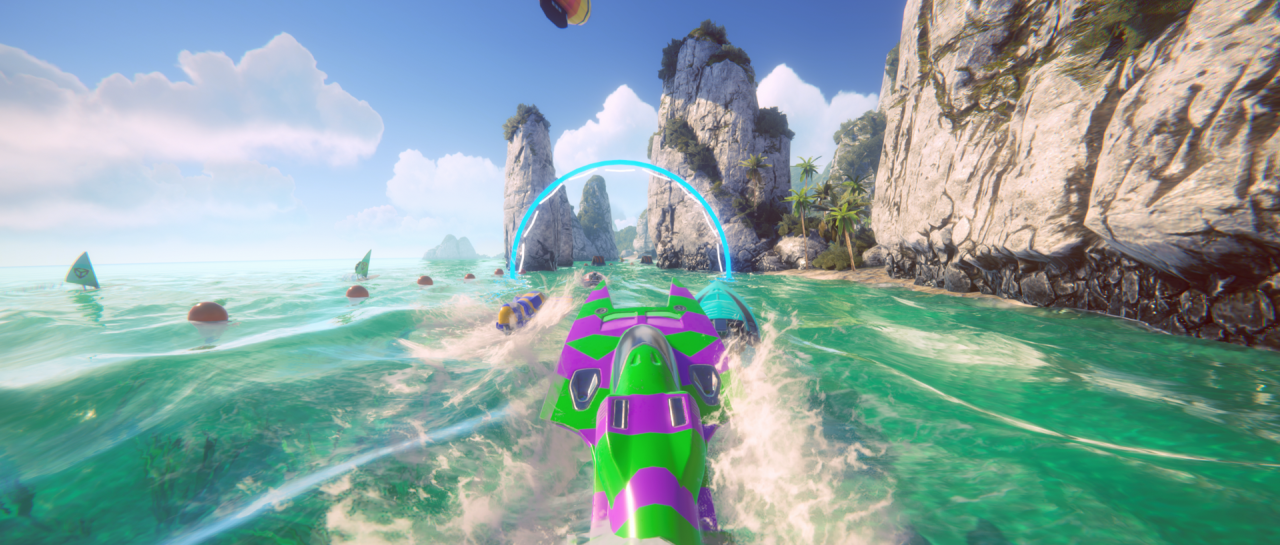
_Scene with Motion Blur effect turned off._
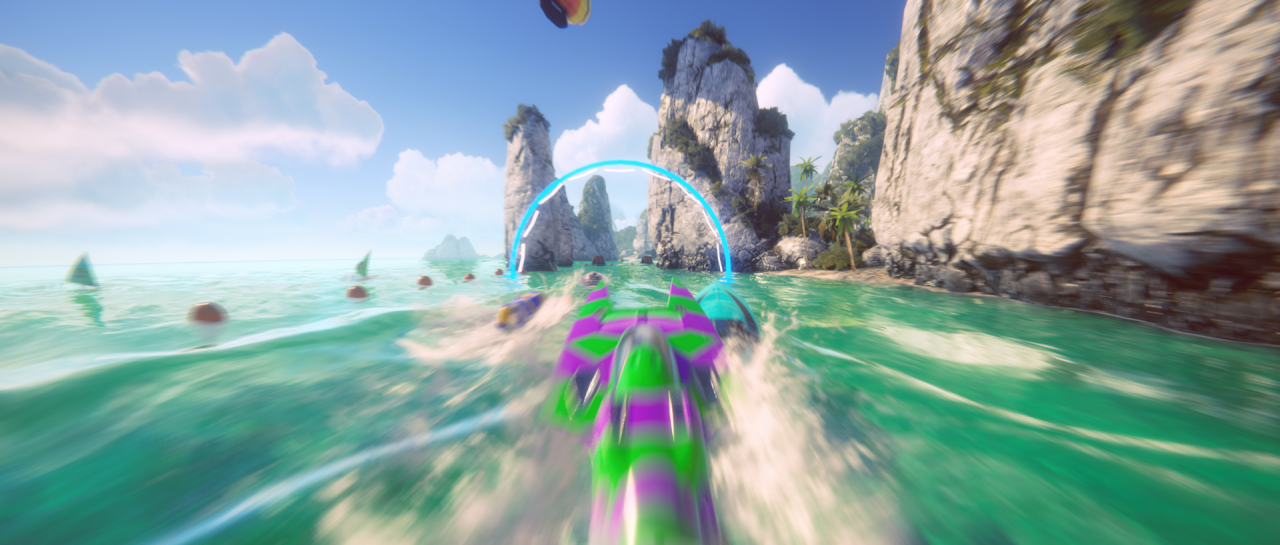
_Scene with Motion Blur effect turned on._
The Motion Blur effect simulates the blur that occurs in an image when a real-world camera films objects moving faster than the camera’s exposure time. This is usually due to rapidly moving objects, or a long exposure time.
Universal Render Pipeline (URP) only blurs camera motions.
## Using Motion Blur
**Motion Blur** uses the [Volume](Volumes.md) system, so to enable and modify **Motion Blur** properties, you must add a **Motion Blur** override to a [Volume](Volumes.md) in your Scene. To add **Motion Blur** to a Volume:
1. In the Scene or Hierarchy view, select a GameObject that contains a Volume component to view it in the Inspector.
2. In the Inspector, navigate to **Add Override > Post-processing**, and click on **Motion Blur**. URP now applies **Motion Blur** to any Camera this Volume affects.
## Properties

| **Property** | **Description** |
| ------------- | ------------------------------------------------------------ |
| **Quality** | Set the quality of the effect. Lower presets give better performance, but at a lower visual quality. |
| **Intensity** | Set the strength of the motion blur filter to a value from 0 to 1. Higher values give a stronger blur effect, but can cause lower performance, depending on the **Clamp** parameter. |
| **Clamp** | Set the maximum length that the velocity resulting from Camera rotation can have. This limits the blur at high velocity, to avoid excessive performance costs. The value is measured as a fraction of the screen's full resolution. The value range is 0 to 0.2. The default value is 0.05. |
## Troubleshooting performance issues
To decrease the performance impact of Motion Blur, you can:
* Reduce the **Quality**. A lower quality setting gives higher performance but may exhibit more visual artifacts.
* Decrease the **Clamp** to reduce the maximum velocity that Unity takes into account. Lower values give higher performance.